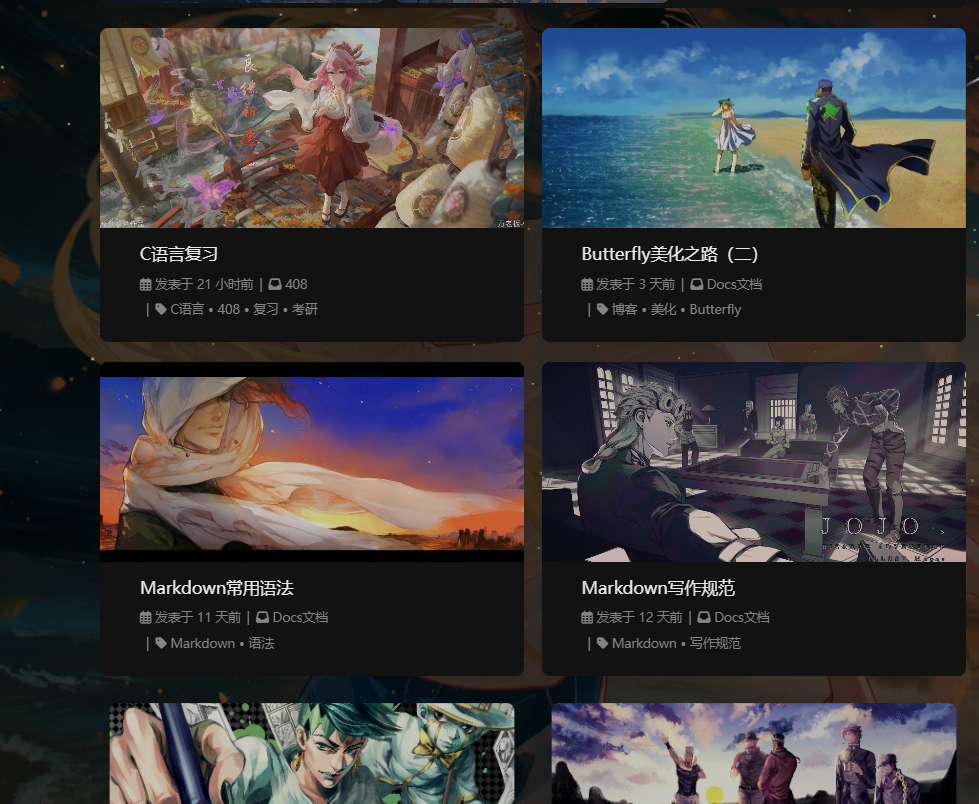
Butterfly美化之路(二)

一、前言

我的博客使用的是 Hexo + GitHub 搭建在线博客,主题用的是 Butterfly,教程及官方文档均可在网上找到,我只是在这里记录一些自己的感受,以防以后玩崩了找不到回家的路

**本文中,如果没有特殊说明,修改的文件一律为 主题配置文件 **

参考文档:

Butterfly安装文档: https://butterfly.js.org/posts/21cfbf15/

Fomalhaut的分享: https://www.fomal.cc/

Akilarの糖果屋: https://akilar.top/


二、一图流

source 文件夹下新建一个文件夹 css,该文件夹用于存放自定义的 css 样式,再新建一个名为 custom.css

在里面写入以下代码:

1
2
3
4
5
6
7
8
9
10
11
12
13
14
15
16
17
18
19
20
21
22
23
/* 页脚与头图透明 */
#footer {
background: transparent !important;
}
#page-header {
background: transparent !important;
}

/* 白天模式遮罩透明 */
#footer::before {
background: transparent !important;
}
#page-header::before {
background: transparent !important;
}

/* 夜间模式遮罩透明 */
[data-theme="dark"] #footer::before {
background: transparent !important;
}
[data-theme="dark"] #page-header::before {
background: transparent !important;
}

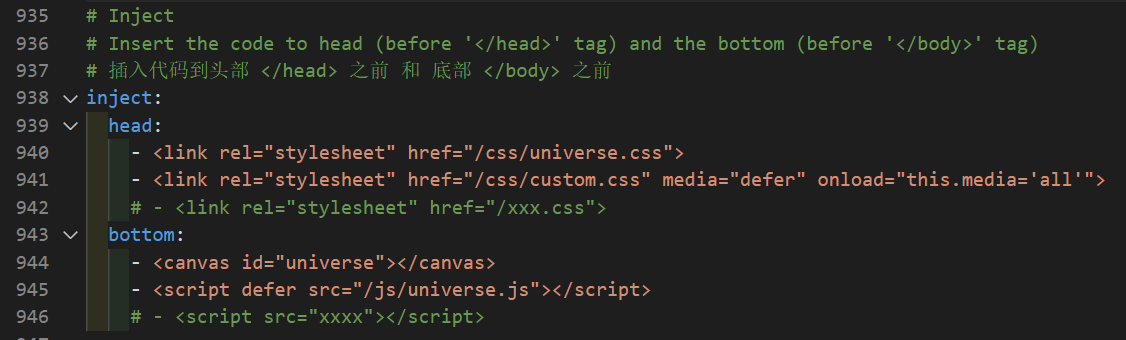
主题配置文件 inject.head 下添加引入

1
- <link rel="stylesheet" href="/css/custom.css" media="defer" onload="this.media='all'">

引入自定义样式文件

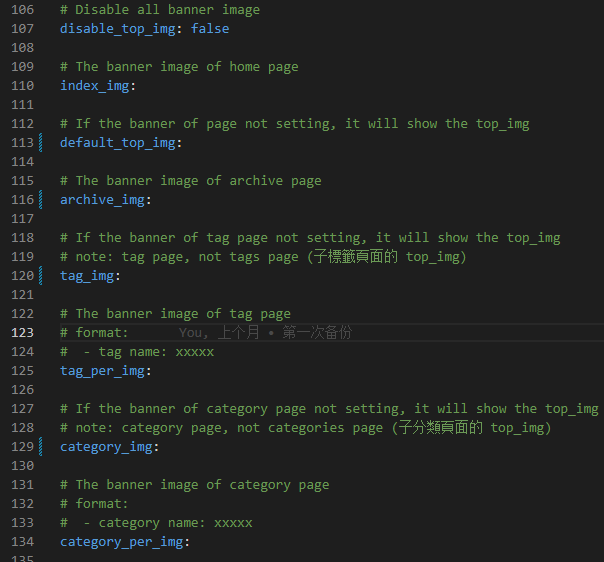
将之前设置的背景图置空, 避免冗余加载

1
2
3
4
5
6
7
8
9
10
11
12
13
14
15
16
17
18
19
20
21
22
23
24
25
26
27
28
29
# Disable all banner image
disable_top_img: false

# The banner image of home page
index_img:

# If the banner of page not setting, it will show the top_img
default_top_img:

# The banner image of archive page
archive_img:

# If the banner of tag page not setting, it will show the top_img
# note: tag page, not tags page (子標籤頁面的 top_img)
tag_img:

# The banner image of tag page
# format:
# - tag name: xxxxx
tag_per_img:

# If the banner of category page not setting, it will show the top_img
# note: category page, not categories page (子分類頁面的 top_img)
category_img:

# The banner image of category page
# format:
# - category name: xxxxx
category_per_img:

置空设置


三、新增留言板

新建留言板路径

1
hexo new page comments

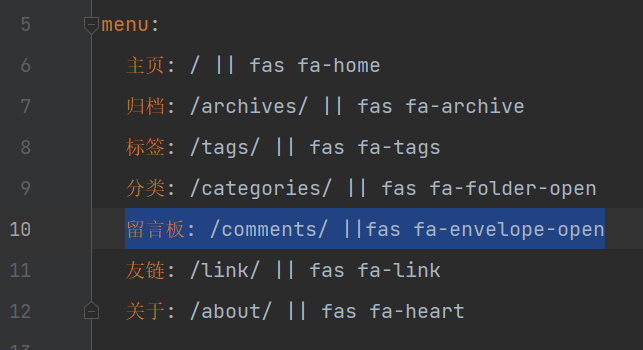
导航栏添加

1
留言板: /comments/ ||fas fa-envelope-open

导航栏添加留言板

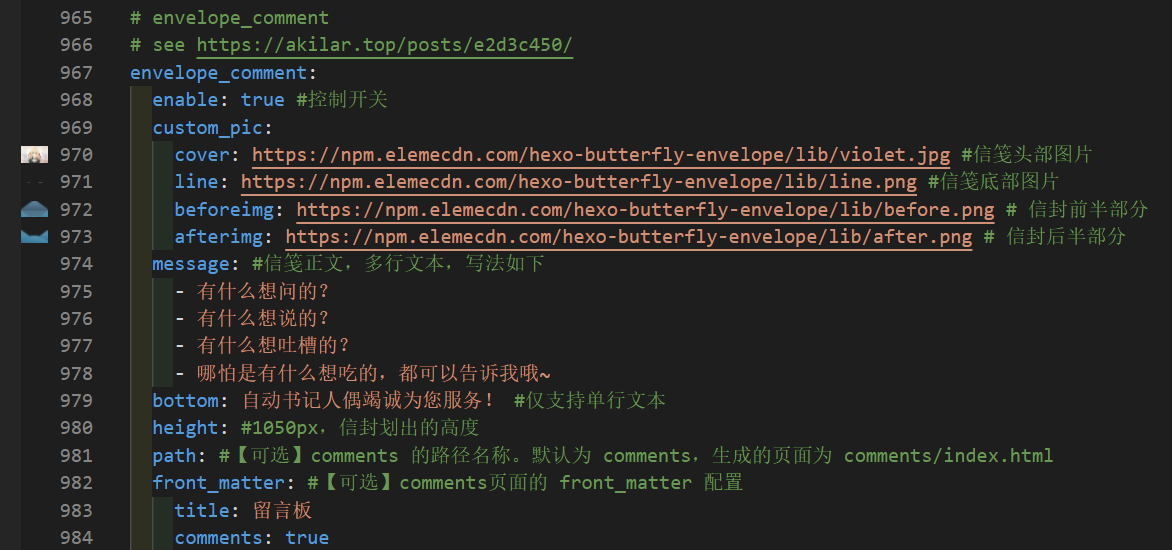
配置文件添加

1
2
3
4
5
6
7
8
9
10
11
12
13
14
15
16
17
18
19
20
# envelope_comment
# see https://akilar.top/posts/e2d3c450/
envelope_comment:
enable: true #控制开关
custom_pic:
cover: https://npm.elemecdn.com/hexo-butterfly-envelope/lib/violet.jpg #信笺头部图片
line: https://npm.elemecdn.com/hexo-butterfly-envelope/lib/line.png #信笺底部图片
beforeimg: https://npm.elemecdn.com/hexo-butterfly-envelope/lib/before.png # 信封前半部分
afterimg: https://npm.elemecdn.com/hexo-butterfly-envelope/lib/after.png # 信封后半部分
message: #信笺正文,多行文本,写法如下
- 有什么想问的?
- 有什么想说的?
- 有什么想吐槽的?
- 哪怕是有什么想吃的,都可以告诉我哦~
bottom: 自动书记人偶竭诚为您服务! #仅支持单行文本
height: #1050px,信封划出的高度
path: #【可选】comments 的路径名称。默认为 comments,生成的页面为 comments/index.html
front_matter: #【可选】comments页面的 front_matter 配置
title: 留言板
comments: true

留言板设置


四、页脚GitHub徽标

安装插件:

1
npm install hexo-butterfly-footer-beautify --save

添加配置项

1
2
3
4
5
6
7
8
9
10
11
12
13
14
15
16
17
18
19
20
21
22
23
24
25
26
27
28
29
30
31
32
33
34
35
36
37
38
39
40
41
42
43
44
45
46
47
48
# footer_beautify
# 页脚计时器:[Native JS Timer](https://akilar.top/posts/b941af/)
# 页脚徽标:[Add Github Badge](https://akilar.top/posts/e87ad7f8/)
footer_beautify:
enable:
timer: true # 计时器开关
bdage: true # 徽标开关
priority: 5 #过滤器优先权
enable_page: all # 应用页面
exclude: #屏蔽页面
# - /posts/
# - /about/
layout: # 挂载容器类型
type: id
name: footer-wrap
index: 0
# 计时器部分配置项(看你喜欢哪个,最好下载下来放到自己的项目中不然会增加我网站的负载)
# 这是我的
# runtime_js: https://www.fomal.cc/static/js/runtime.js
# runtime_css: https://www.fomal.cc/static/css/runtime.min.css
# 这是店长的
runtime_js: /js/runtime.js
runtime_css: /css/runtime.css
# 徽标部分配置项
swiperpara: 0 #若非0,则开启轮播功能,每行徽标个数
bdageitem:
- link: https://hexo.io/ #徽标指向网站链接
shields: https://img.shields.io/badge/Frame-Hexo-blue?style=flat&logo=hexo #徽标API
message: 博客框架为Hexo_v6.3.0 #徽标提示语
- link: https://butterfly.js.org/
shields: https://img.shields.io/badge/Theme-Butterfly-6513df?style=flat&logo=bitdefender
message: 主题版本Butterfly_v4.5.1
- link: https://vercel.com/
shields: https://img.shields.io/badge/Hosted-Vercel-brightgreen?style=flat&logo=Vercel
message: 本站采用多线部署,主线路托管于Vercel
- link: https://dashboard.4everland.org/
# https://img.shields.io/badge/Hosted-4EVERLAND-3FE2C1?style=flat&logo=IPFS
shields: https://img.shields.io/badge/Hosted-4EVERLAND-22DDDD?style=flat&logo=IPFS
message: 本站采用多线部署,备用线路托管于4EVERLAND
- link: https://github.com/
shields: https://img.shields.io/badge/Source-Github-d021d6?style=flat&logo=GitHub
message: 本站项目由Github托管
- link: http://creativecommons.org/licenses/by-nc-sa/4.0/
shields: https://img.shields.io/badge/Copyright-BY--NC--SA%204.0-d42328?style=flat&logo=Claris
message: 本站采用知识共享署名-非商业性使用-相同方式共享4.0国际许可协议进行许可
swiper_css: https://npm.elemecdn.com/hexo-butterfly-swiper/lib/swiper.min.css
swiper_js: https://npm.elemecdn.com/hexo-butterfly-swiper/lib/swiper.min.js
swiperbdage_init_js: https://npm.elemecdn.com/hexo-butterfly-footer-beautify/lib/swiperbdage_init.min.js

runtime.css

1
2
3
4
5
6
7
8
9
10
11
12
13
14
15
16
17
18
19
20
21
22
23
24
25
26
27
28
29
30
31
32
33
34
35
36
37
38
39
40
41
42
43
44
45
46
47
48
49
50
51
52
53
54
55
56
57
58
59
60
61
62
63
64
65
66
67
68
69
70
71
72
/*电子钟字体*/
@font-face {
font-family: 'UnidreamLED';
src: url("https://cdn.jsdelivr.net/npm/akilar-candyassets/fonts/UnidreamLED.ttf");
font-display: swap;
}
div#runtime {
width: 200px;
margin: auto;
color: #fff;
padding-inline: 5px;
border-radius: 10px;
background-color: rgba(0,0,0,0.7);
/*font-family: 'UnidreamLED';*/
}
[data-theme="dark"] div#runtime {
color: #28b4c8;
box-shadow: 0 0 5px rgba(28,69,218,0.71);
animation: flashlight 1s linear infinite alternate;
}
/*悬停显示徽标提示语*/
a.github-badge:hover:before {
position: fixed;
width: fit-content;
margin: auto;
left: 0;
right: 0;
top: 10%;
border-radius: 10px;
text-align: center;
z-index: 100;
content: attr(data-title);
font-size: 20px;
color: #fff;
padding: 10px;
background-color: var(--text-bg-hover);
}
[data-theme=dark] a.github-badge:hover:before {
background-color: rgba(18,18,18,0.8);
}
@-moz-keyframes flashlight {
from {
box-shadow: 0 0 5px #1478d2;
}
to {
box-shadow: 0 0 2px #1478d2;
}
}
@-webkit-keyframes flashlight {
from {
box-shadow: 0 0 5px #1478d2;
}
to {
box-shadow: 0 0 2px #1478d2;
}
}
@-o-keyframes flashlight {
from {
box-shadow: 0 0 5px #1478d2;
}
to {
box-shadow: 0 0 2px #1478d2;
}
}
@keyframes flashlight {
from {
box-shadow: 0 0 5px #1478d2;
}
to {
box-shadow: 0 0 2px #1478d2;
}
}

runtime.js

1
2
3
4
5
6
7
8
9
10
11
12
13
14
15
16
17
18
19
20
21
22
23
24
25
26
27
28
29
30
31
32
33
34
35
36
setInterval(() => {
let create_time = Math.round(new Date('2022-12-1 00:00:00').getTime() / 1000); //在此行修改建站时间
let timestamp = Math.round((new Date().getTime()) / 1000);
let second = timestamp - create_time;
let time = new Array(0, 0, 0, 0, 0);

var nol = function(h){
return h>9?h:'0'+h;
}
if (second >= 365 * 24 * 3600) {
time[0] = parseInt(second / (365 * 24 * 3600));
second %= 365 * 24 * 3600;
}
if (second >= 24 * 3600) {
time[1] = parseInt(second / (24 * 3600));
second %= 24 * 3600;
}
if (second >= 3600) {
time[2] = nol(parseInt(second / 3600));
second %= 3600;
}
if (second >= 60) {
time[3] = nol(parseInt(second / 60));
second %= 60;
}
if (second > 0) {
time[4] = nol(second);
}
if ((Number(time[2])<22) && (Number(time[2])>7)){
currentTimeHtml ="<img class='boardsign' src='https://img.shields.io/badge/月华.の冒险-开始了-6adea8?style=social&logo=cakephp' title='今天会发生什么奇妙的事呢?'><div id='runtime'>" + time[0] + ' YEAR ' + time[1] + ' DAYS ' + time[2] + ' : ' + time[3] + ' : ' + time[4] + '</div>';
}
else{
currentTimeHtml ="<img class='boardsign' src='https://img.shields.io/badge/月华.的冒险-有些累了-6adea8?style=social&logo=coffeescript' title='为了明天的冒险,今天先暂时休息吧'><div id='runtime'>" + time[0] + ' YEAR ' + time[1] + ' DAYS ' + time[2] + ' : ' + time[3] + ' : ' + time[4] + '</div>';
}
document.getElementById("workboard").innerHTML = currentTimeHtml;
}, 1000);

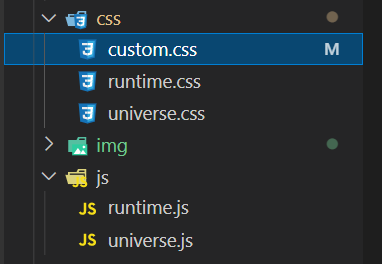
文件位置

参数 备选值/类型 释义
priority number 【可选】过滤器优先级,数值越小,执行越早,默认为10,选填
enable.timer true/false 【必选】计时器控制开关
enable.bdage true/false 【必选】徽标控制开关
enable_page path 【可选】填写想要应用的页面,如根目录就填 /,分类页面就填 /categories/。若要应用于所有页面,就填 all,默认为all
exclude path 【可选】填写想要屏蔽的页面,可以多个。仅当 enable_page 为 all 时生效。写法见示例。原理是将屏蔽项的内容逐个放到当前路径去匹配,若当前路径包含任一屏蔽项,则不会挂载。
layout.type id/class 【可选】挂载容器类型,填写 id 或 class,不填则默认为id
layout.name text 【必选】挂载容器名称
layout.index 0和正整数 【可选】前提是 layout.type 为 class,因为同一页面可能有多个 class,此项用来确认究竟排在第几个顺位
runtime_js url 【必选】页脚计时器脚本,可以下载上文填写示例的链接,参照注释和教程:Native JS Timer自行修改。
runtime_css url 【可选】自定义样式,预留开发者接口,可自行下载。
swiperpara number 【可选】若非零,则开启轮播功能,此项表示每行最多容纳徽标个数,用来应对徽标过多显得页脚拥挤的问题
bdageitem.link url 【可选】页脚徽标指向的网站链接
bdageitem.shields url 【必选】页脚徽标对应的API,API具体写法示例参照教程Add Github Badge
bdageitem.message text 【可选】页脚徽标悬停时显示的信息
swiper_css url 【可选】swiper的依赖
swiper_js url 【可选】swiper的依赖
swiperbdage_init_js url 【可选】swiper初始化方法

效果


五、首页分类磁贴

安装插件:

1
npm install hexo-butterfly-categories-card --save

添加配置项

1
2
3
4
5
6
7
8
9
10
11
12
13
14
15
16
17
18
# hexo-butterfly-categories-card
# see https://akilar.top/posts/a9131002/
categoryBar:
enable: true # 开关
priority: 5 #过滤器优先权
enable_page: / # 应用页面
layout: # 挂载容器类型
type: id
name: recent-posts
index: 0
column: odd # odd:3列 | even:4列
row: 2 #显示行数,默认两行,超过行数切换为滚动显示
message:
- descr: Docs文档
cover: /img/夏日重现3.jpg
- descr: 408
cover: /img/夏日重现2.jpg
custom_css: https://npm.elemecdn.com/hexo-butterfly-categories-card@1.0.0/lib/categorybar.css
参数 备选值/类型 释义
priority number 【可选】过滤器优先级,数值越小,执行越早,默认为 10 ,选填
enable true/false 【必选】控制开关
enable_page path/all 【可选】填写想要应用的页面的相对路径(即路由地址),如根目录就填 /,分类页面就填 /categories/。若要应用于所有页面,就填 all,默认为 /
layout.type id/class 【可选】挂载容器类型,填写 id 或 class,不填则默认为 id
layout.name text 【必选】挂载容器名称
layout.index 0和正整数 【可选】前提是 layout.type 为class,因为同一页面可能有多个 class ,此项用来确认究竟排在第几个顺位
column odd/even 【可选】显示列数,考虑到比例问题,只提供3列和4列,odd为3列, even为4列
row number 【可选】显示行数,默认两行,超过行数切换为滚动显示
message.descr text 分类描述,需要和你自己的文章分类一一对应。
message.cover url 分类背景,需要和你自己的文章分类一一对应。
custom_css url 【可选】自定义样式,会替换默认的css链接,可以下载文档给出的cdn链接后自主修改

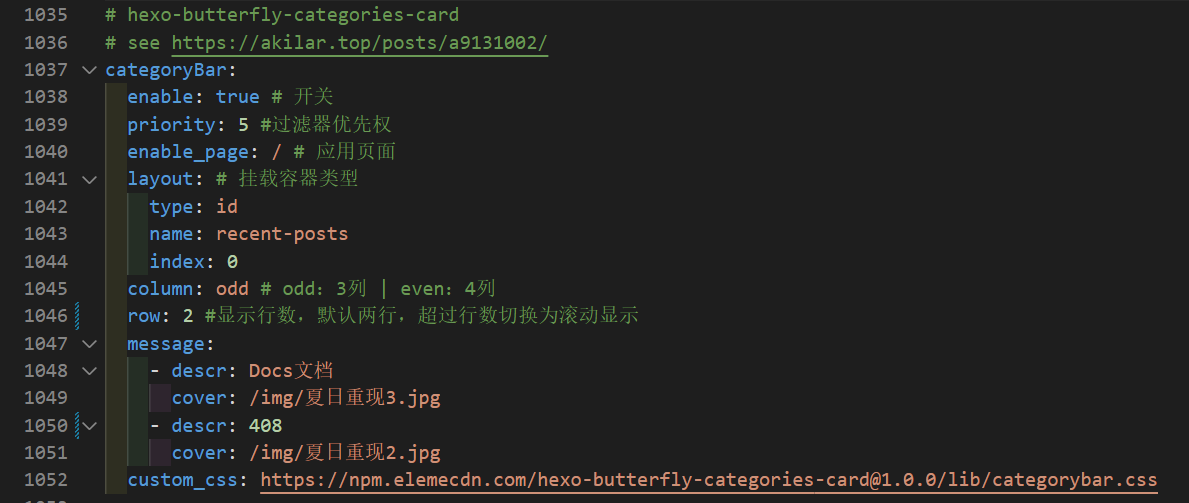
首页分类磁贴设置

分类磁贴效果


六、文章置顶滚动栏

安装插件:

1
npm install hexo-butterfly-swiper --save

添加配置项

1
2
3
4
5
6
7
8
9
10
11
12
13
14
15
16
# hexo-butterfly-swiper
# see https://akilar.top/posts/8e1264d1/
swiper:
enable: true # 开关
priority: 5 #过滤器优先权
enable_page: / # 应用页面
timemode: date #date/updated
layout: # 挂载容器类型
type: id
name: recent-posts
index: 0
default_descr: 感兴趣就点进来看看吧
swiper_css: https://npm.elemecdn.com/hexo-butterfly-swiper/lib/swiper.min.css #swiper css依赖
swiper_js: https://npm.elemecdn.com/hexo-butterfly-swiper/lib/swiper.min.js #swiper js依赖
custom_css: https://npm.elemecdn.com/hexo-butterfly-swiper/lib/swiperstyle.css # 适配主题样式补丁
custom_js: https://npm.elemecdn.com/hexo-butterfly-swiper/lib/swiper_init.js # swiper初始化方法
参数 备选值/类型 释义
priority number 【可选】过滤器优先级,数值越小,执行越早,默认为 10,选填
enable true/false 【必选】控制开关
enable_page path/all 【可选】填写想要应用的页面的相对路径(即路由地址),如根目录就填 /,分类页面就填 /categories/。若要应用于所有页面,就填 all,默认为 all
timemode date/updated 【可选】时间显示,date 为显示创建日期,updated 为显示更新日期,默认为 date
layout.type id/class 【可选】挂载容器类型,填写 id 或 class,不填则默认为 id
layout.name text 【必选】挂载容器名称
layout.index 0和正整数 【可选】前提是 layout.type 为 class,因为同一页面可能有多个 class,此项用来确认究竟排在第几个顺位
default_descr text 默认文章描述
swiper_css url 【可选】自定义的swiper依赖项css链接
swiper_js url 【可选】自定义的swiper依赖项加js链接
custom_css url 【可选】适配主题样式补丁
custom_js url 【可选】swiper初始化方法

使用方法: 在要使用的文章的 fromt_matter 中添加配置项

1
swiper_index: 1 #置顶轮播图顺序,非负整数,数字越大越靠前

七、文章双侧栏显示

安装插件:

1
npm i hexo-butterfly-article-double-row --save

博客配置文件中添加配置

1
2
3
# 文章双侧栏显示
butterfly_article_double_row:
enable: true

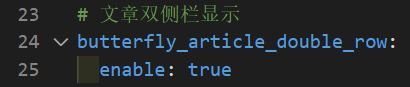
文章双侧栏显示设置

custom.css 中添加代码

1
2
3
4
5
/* 翻页按钮居中 */
#pagination {
width: 100%;
margin: auto;
}

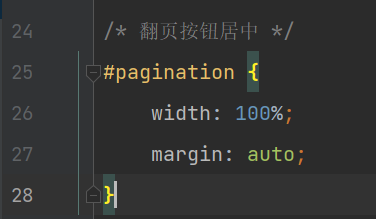
技术页bug修复

效果


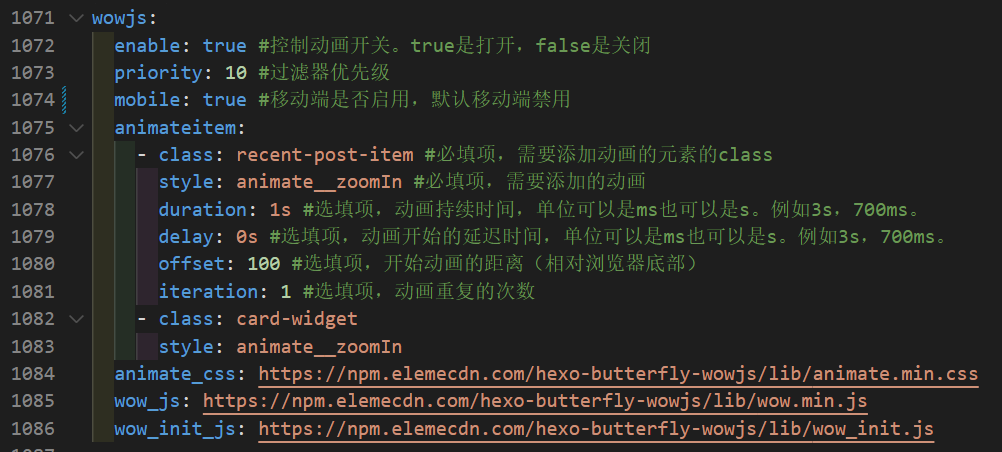
八、wow.js动画

安装插件:

1
npm install hexo-butterfly-wowjs --save

添加配置项

1
2
3
4
5
6
7
8
9
10
11
12
13
14
15
16
wowjs:
enable: true #控制动画开关。true是打开,false是关闭
priority: 10 #过滤器优先级
mobile: true #移动端是否启用,默认移动端禁用
animateitem:
- class: recent-post-item #必填项,需要添加动画的元素的class
style: animate__zoomIn #必填项,需要添加的动画
duration: 1s #选填项,动画持续时间,单位可以是ms也可以是s。例如3s,700ms。
delay: 0s #选填项,动画开始的延迟时间,单位可以是ms也可以是s。例如3s,700ms。
offset: 100 #选填项,开始动画的距离(相对浏览器底部)
iteration: 1 #选填项,动画重复的次数
- class: card-widget
style: animate__zoomIn
animate_css: https://npm.elemecdn.com/hexo-butterfly-wowjs/lib/animate.min.css
wow_js: https://npm.elemecdn.com/hexo-butterfly-wowjs/lib/wow.min.js
wow_init_js: https://npm.elemecdn.com/hexo-butterfly-wowjs/lib/wow_init.js
参数 备选值/类型 释义
enable true/false 【必选】控制开关
priority number 【可选】过滤器优先级,数值越小,执行越早,默认为10,选填
mobile true/false 控制移动端是否启用,默认移动端禁用
animateitem.class class 【可选】添加动画类名,只支持给class添加
animateitem.style text 【可选】动画样式,具体类型参考animate.css
animateitem.duration time,单位为s或ms 【可选】动画持续时间,单位可以是ms也可以是s。例如3s,700ms。
animateitem.delay time,单位为s或ms 【可选】动画开始的延迟时间,单位可以是ms也可以是s。例如3s,700ms。
animateitem.offset number,单位为px 【可选】开始动画的距离(相对浏览器底部)。
animateitem.iteration number,单位为s或ms 【可选】动画重复的次数
animate_css URL 【可选】animate.css的CDN链接,默认为https://npm.elemecdn.com/hexo-butterfly-wowjs/lib/animate.min.css
wow_js URL 【可选】wow.min.js的CDN链接,默认为https://npm.elemecdn.com/hexo-butterfly-wowjs/lib/wow.min.js
wow_init_js URL 【可选】wow_init.js的CDN链接,默认为https://npm.elemecdn.com/hexo-butterfly-wowjs/lib/wow_init.js

wow.js动画设置


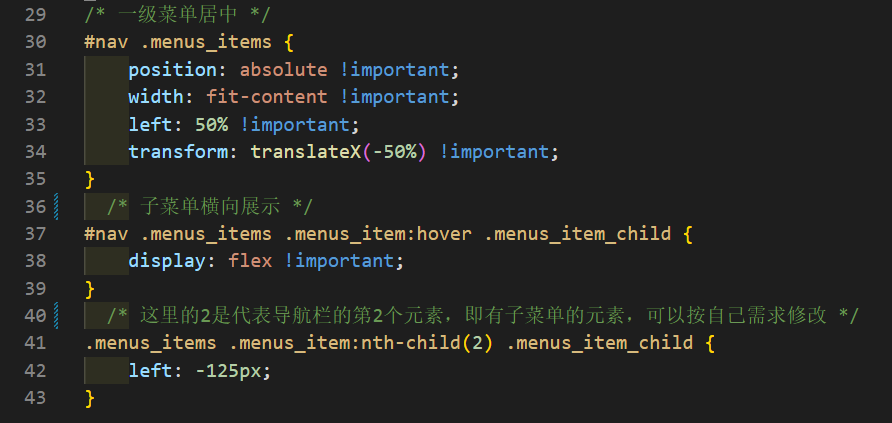
九、改变导航栏

如果子菜单也需要导航栏魔改请参考前言中的参考文档

custom.css 中添加代码

1
2
3
4
5
6
7
8
9
10
11
12
13
14
15
/* 一级菜单居中 */
#nav .menus_items {
position: absolute !important;
width: fit-content !important;
left: 50% !important;
transform: translateX(-50%) !important;
}
/* 子菜单横向展示 */
#nav .menus_items .menus_item:hover .menus_item_child {
display: flex !important;
}
/* 这里的2是代表导航栏的第2个元素,即有子菜单的元素,可以按自己需求修改 */
.menus_items .menus_item:nth-child(2) .menus_item_child {
left: -125px;
}

导航栏魔改设置

导航栏魔改效果


十、星空背景&流星特效

source/js 下新建universe.js

写入以下代码

1
2
3
4
function dark() {window.requestAnimationFrame=window.requestAnimationFrame||window.mozRequestAnimationFrame||window.webkitRequestAnimationFrame||window.msRequestAnimationFrame;var n,e,i,h,t=.05,s=document.getElementById("universe"),o=!0,a="180,184,240",r="226,225,142",d="226,225,224",c=[];function f(){n=window.innerWidth,e=window.innerHeight,i=.216*n,s.setAttribute("width",n),s.setAttribute("height",e)}function u(){h.clearRect(0,0,n,e);for(var t=c.length,i=0;i<t;i++){var s=c[i];s.move(),s.fadeIn(),s.fadeOut(),s.draw()}}function y(){this.reset=function(){this.giant=m(3),this.comet=!this.giant&&!o&&m(10),this.x=l(0,n-10),this.y=l(0,e),this.r=l(1.1,2.6),this.dx=l(t,6*t)+(this.comet+1-1)*t*l(50,120)+2*t,this.dy=-l(t,6*t)-(this.comet+1-1)*t*l(50,120),this.fadingOut=null,this.fadingIn=!0,this.opacity=0,this.opacityTresh=l(.2,1-.4*(this.comet+1-1)),this.do=l(5e-4,.002)+.001*(this.comet+1-1)},this.fadeIn=function(){this.fadingIn&&(this.fadingIn=!(this.opacity>this.opacityTresh),this.opacity+=this.do)},this.fadeOut=function(){this.fadingOut&&(this.fadingOut=!(this.opacity<0),this.opacity-=this.do/2,(this.x>n||this.y<0)&&(this.fadingOut=!1,this.reset()))},this.draw=function(){if(h.beginPath(),this.giant)h.fillStyle="rgba("+a+","+this.opacity+")",h.arc(this.x,this.y,2,0,2*Math.PI,!1);else if(this.comet){h.fillStyle="rgba("+d+","+this.opacity+")",h.arc(this.x,this.y,1.5,0,2*Math.PI,!1);for(var t=0;t<30;t++)h.fillStyle="rgba("+d+","+(this.opacity-this.opacity/20*t)+")",h.rect(this.x-this.dx/4*t,this.y-this.dy/4*t-2,2,2),h.fill()}else h.fillStyle="rgba("+r+","+this.opacity+")",h.rect(this.x,this.y,this.r,this.r);h.closePath(),h.fill()},this.move=function(){this.x+=this.dx,this.y+=this.dy,!1===this.fadingOut&&this.reset(),(this.x>n-n/4||this.y<0)&&(this.fadingOut=!0)},setTimeout(function(){o=!1},50)}function m(t){return Math.floor(1e3*Math.random())+1<10*t}function l(t,i){return Math.random()*(i-t)+t}f(),window.addEventListener("resize",f,!1),function(){h=s.getContext("2d");for(var t=0;t<i;t++)c[t]=new y,c[t].reset();u()}(),function t(){document.getElementsByTagName('html')[0].getAttribute('data-theme')=='dark'&&u(),window.requestAnimationFrame(t)}()};
dark()
function light() {window.requestAnimationFrame=window.requestAnimationFrame||window.mozRequestAnimationFrame||window.webkitRequestAnimationFrame||window.msRequestAnimationFrame;var n,e,i,h,t=.05,s=document.getElementById("universe"),o=!0,a="180,184,240",r="226,225,142",d="226,225,224",c=[];function f(){n=window.innerWidth,e=window.innerHeight,i=.216*n,s.setAttribute("width",n),s.setAttribute("height",e)}function u(){h.clearRect(0,0,n,e);for(var t=c.length,i=0;i<t;i++){var s=c[i];s.move(),s.fadeIn(),s.fadeOut(),s.draw()}}function y(){this.reset=function(){this.giant=m(3),this.comet=!this.giant&&!o&&m(10),this.x=l(0,n-10),this.y=l(0,e),this.r=l(1.1,2.6),this.dx=l(t,6*t)+(this.comet+1-1)*t*l(50,120)+2*t,this.dy=-l(t,6*t)-(this.comet+1-1)*t*l(50,120),this.fadingOut=null,this.fadingIn=!0,this.opacity=0,this.opacityTresh=l(.2,1-.4*(this.comet+1-1)),this.do=l(5e-4,.002)+.001*(this.comet+1-1)},this.fadeIn=function(){this.fadingIn&&(this.fadingIn=!(this.opacity>this.opacityTresh),this.opacity+=this.do)},this.fadeOut=function(){this.fadingOut&&(this.fadingOut=!(this.opacity<0),this.opacity-=this.do/2,(this.x>n||this.y<0)&&(this.fadingOut=!1,this.reset()))},this.draw=function(){if(h.beginPath(),this.giant)h.fillStyle="rgba("+a+","+this.opacity+")",h.arc(this.x,this.y,2,0,2*Math.PI,!1);else if(this.comet){h.fillStyle="rgba("+d+","+this.opacity+")",h.arc(this.x,this.y,1.5,0,2*Math.PI,!1);for(var t=0;t<30;t++)h.fillStyle="rgba("+d+","+(this.opacity-this.opacity/20*t)+")",h.rect(this.x-this.dx/4*t,this.y-this.dy/4*t-2,2,2),h.fill()}else h.fillStyle="rgba("+r+","+this.opacity+")",h.rect(this.x,this.y,this.r,this.r);h.closePath(),h.fill()},this.move=function(){this.x+=this.dx,this.y+=this.dy,!1===this.fadingOut&&this.reset(),(this.x>n-n/4||this.y<0)&&(this.fadingOut=!0)},setTimeout(function(){o=!1},50)}function m(t){return Math.floor(1e3*Math.random())+1<10*t}function l(t,i){return Math.random()*(i-t)+t}f(),window.addEventListener("resize",f,!1),function(){h=s.getContext("2d");for(var t=0;t<i;t++)c[t]=new y,c[t].reset();u()}(),function t(){document.getElementsByTagName('html')[0].getAttribute('data-theme')=='light'&&u(),window.requestAnimationFrame(t)}()};
light()

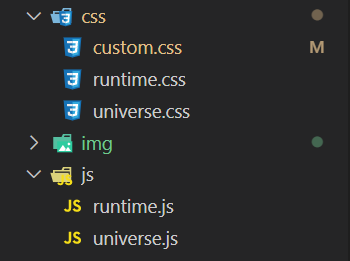
source/css 下新建 universe.css

写入以下代码

1
2
3
4
5
6
7
8
9
10
11
12
13
14
15
16
/* 背景宇宙星光  */
#universe{
display: block;
position: fixed;
margin: 0;
padding: 0;
border: 0;
outline: 0;
left: 0;
top: 0;
width: 100%;
height: 100%;
pointer-events: none;
/* 这个是调置顶的优先级的,-1在文章页下面,背景上面,个人推荐这种 */
z-index: -1;
}

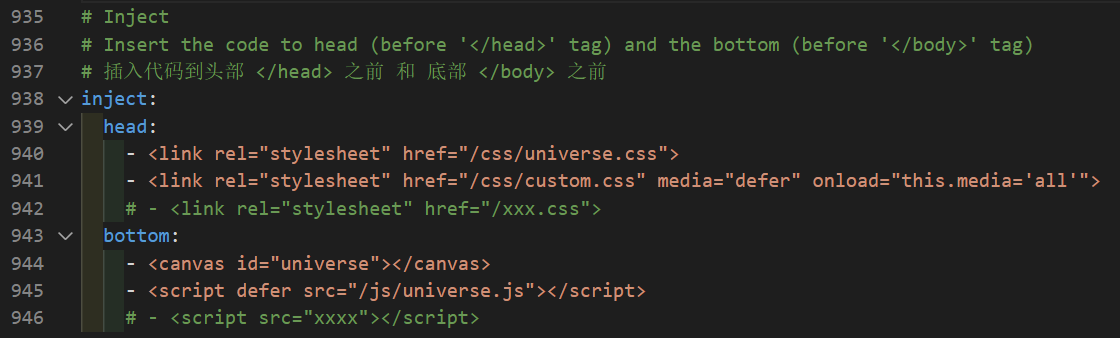
主题配置文件 inject.bottom 下添加引入

1
2
- <canvas id="universe"></canvas>
- <script defer src="/js/universe.js"></script>

主题配置文件 inject.head 下添加引入

1
- <link rel="stylesheet" href="/css/universe.css">

星空特效配置

文件位置

效果


十一、Twikoo 评论系统

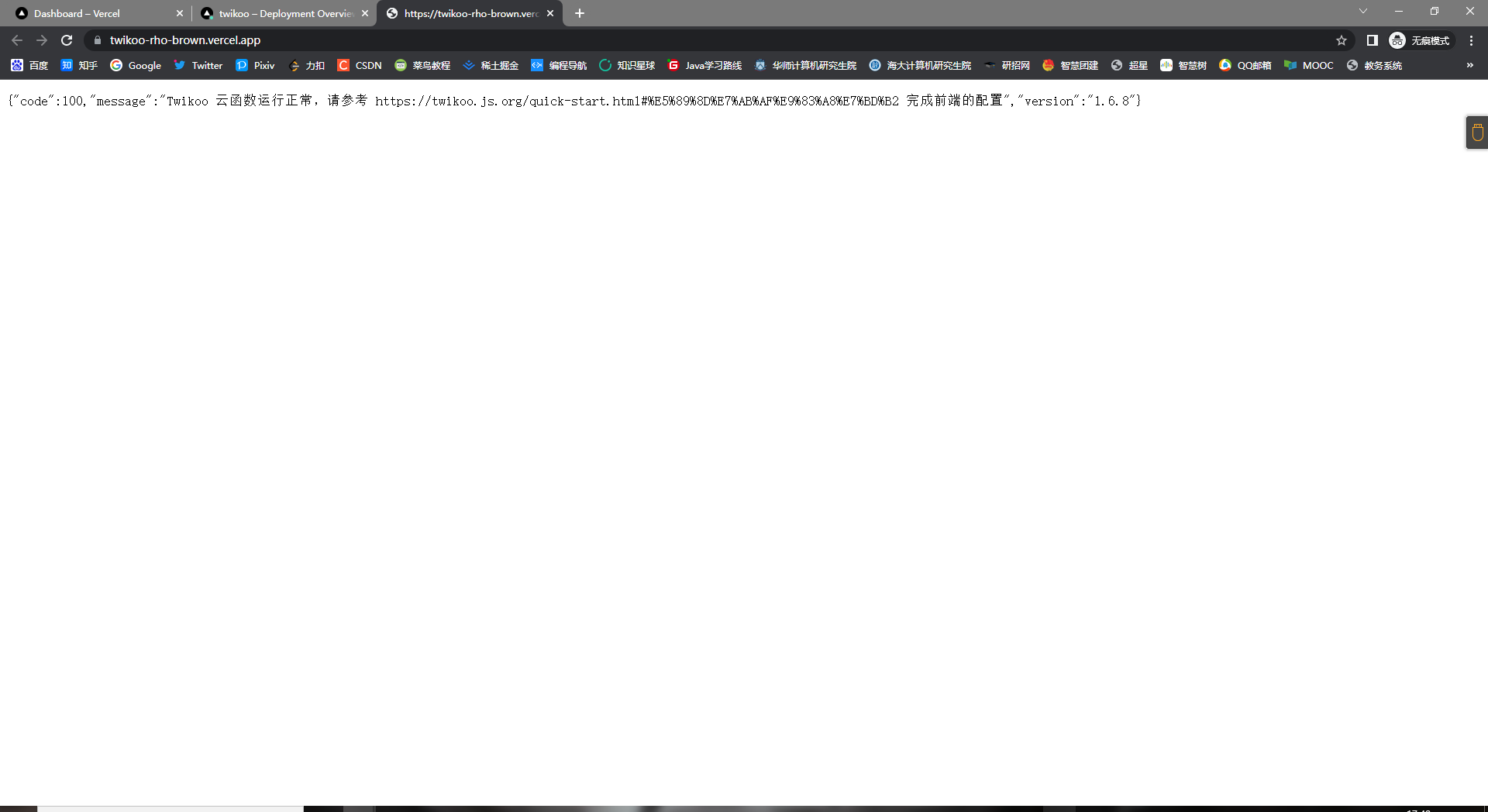
11.1 后端配置

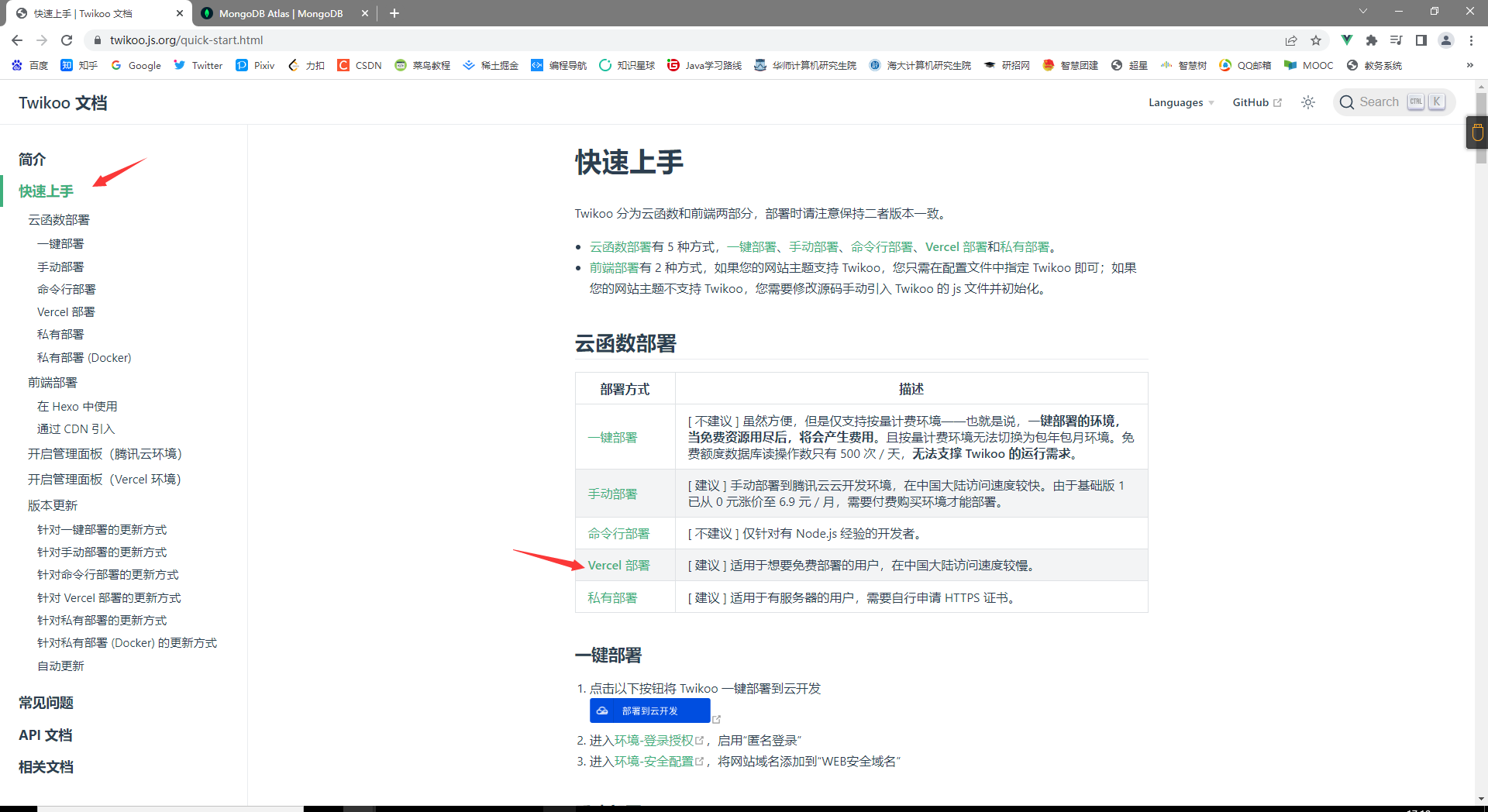
https://twikoo.js.org/

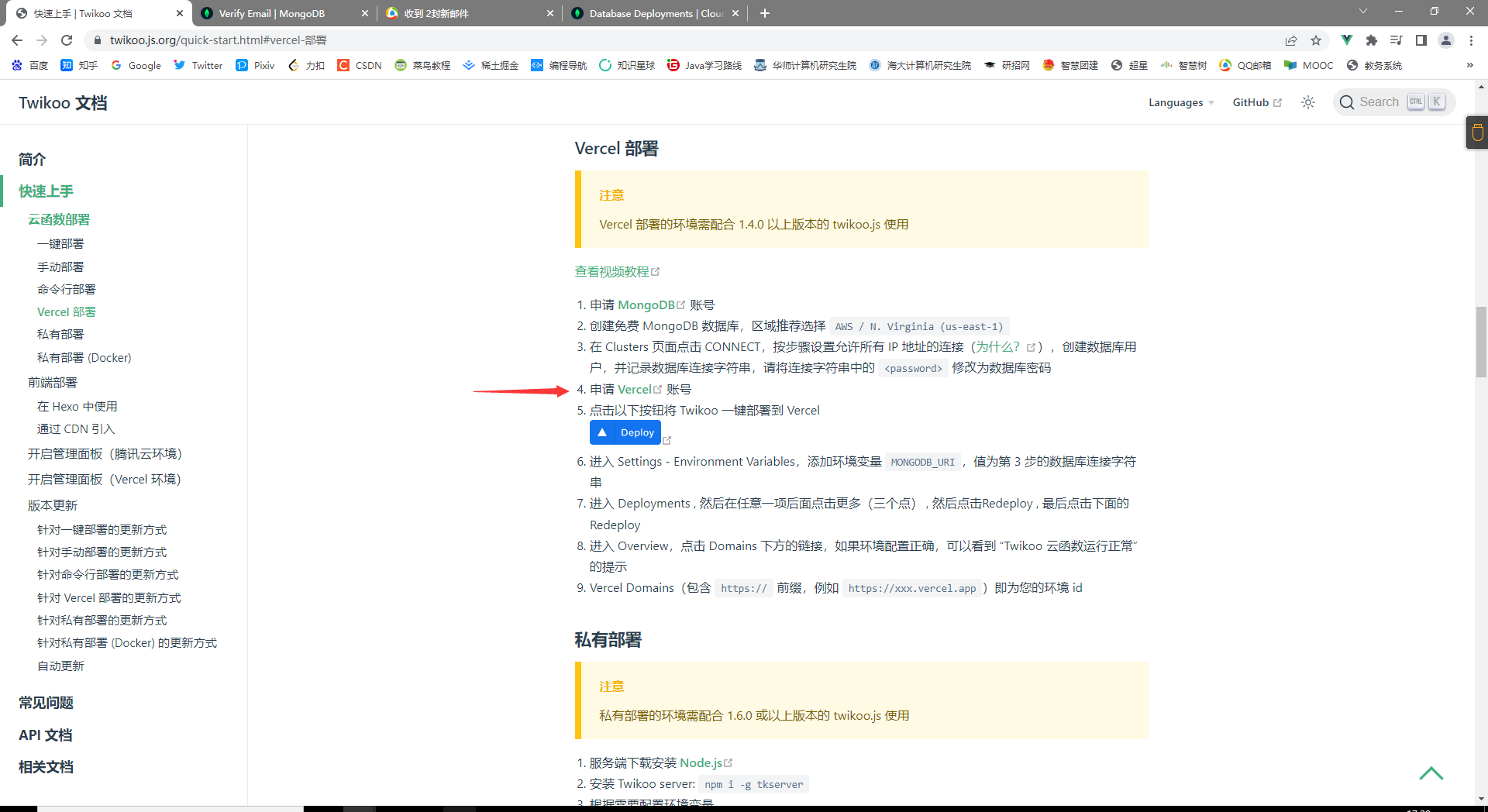
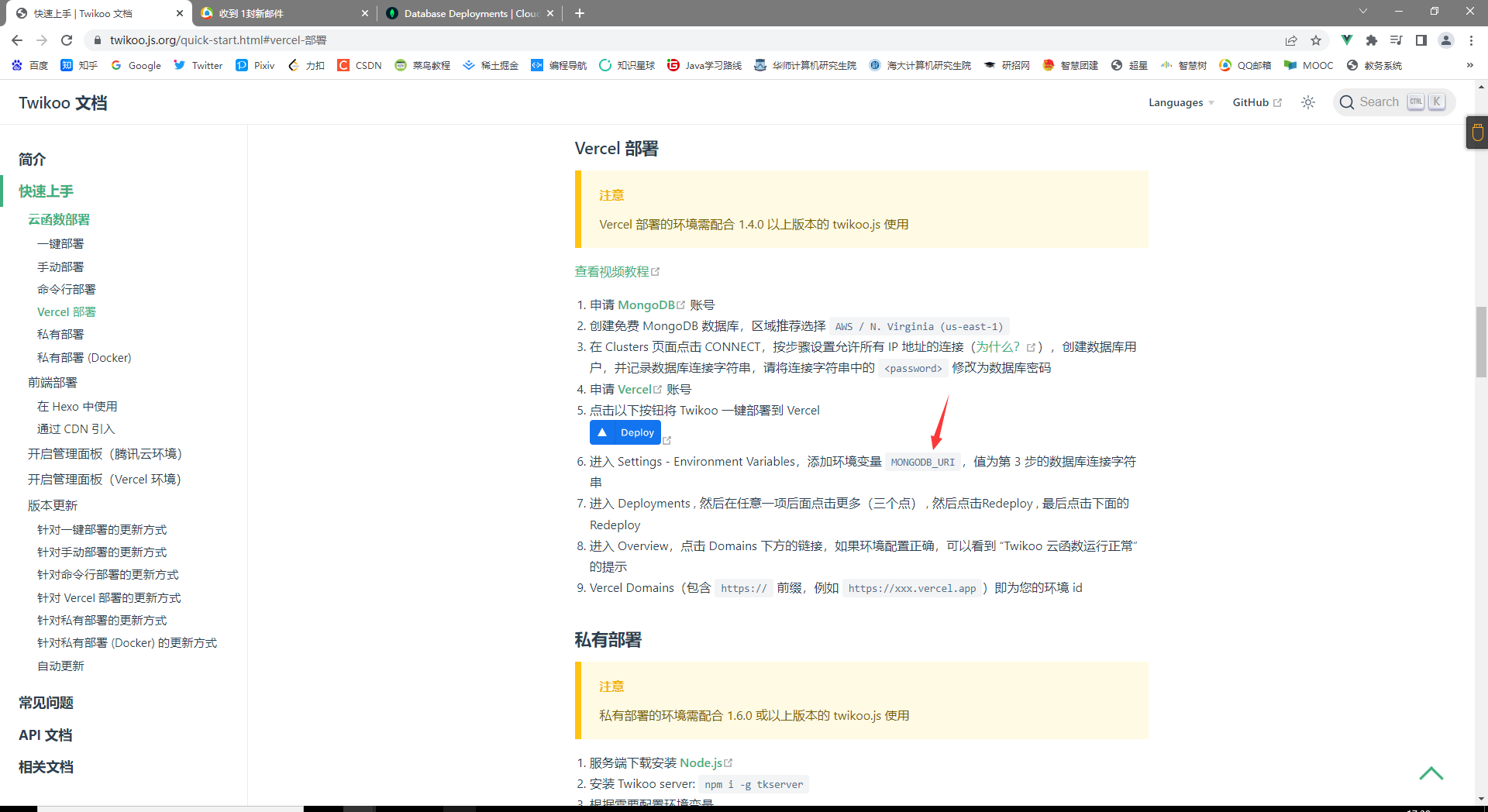
点击快速上手

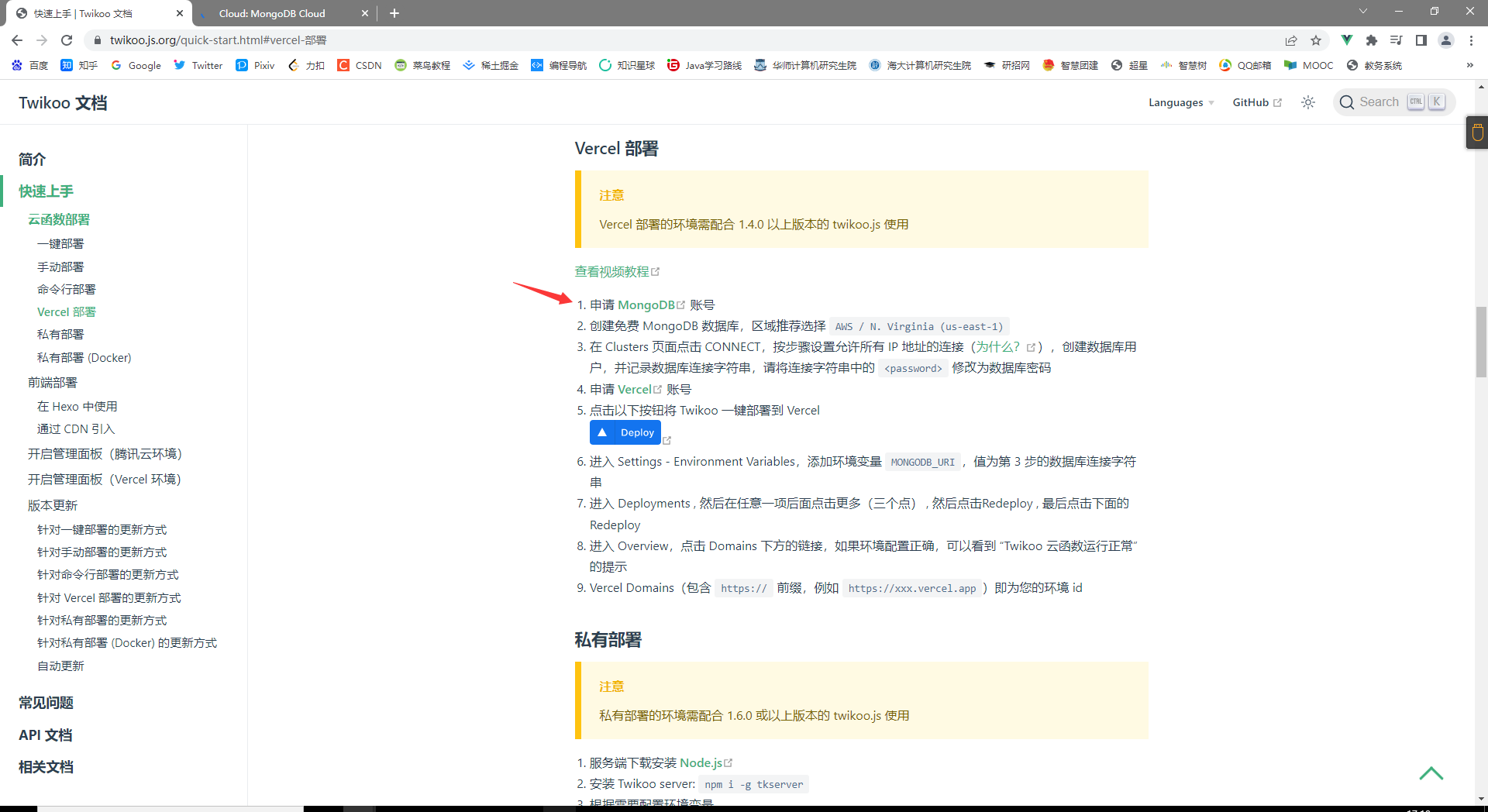
Vercel 部署

快速上手 Vercel 部署

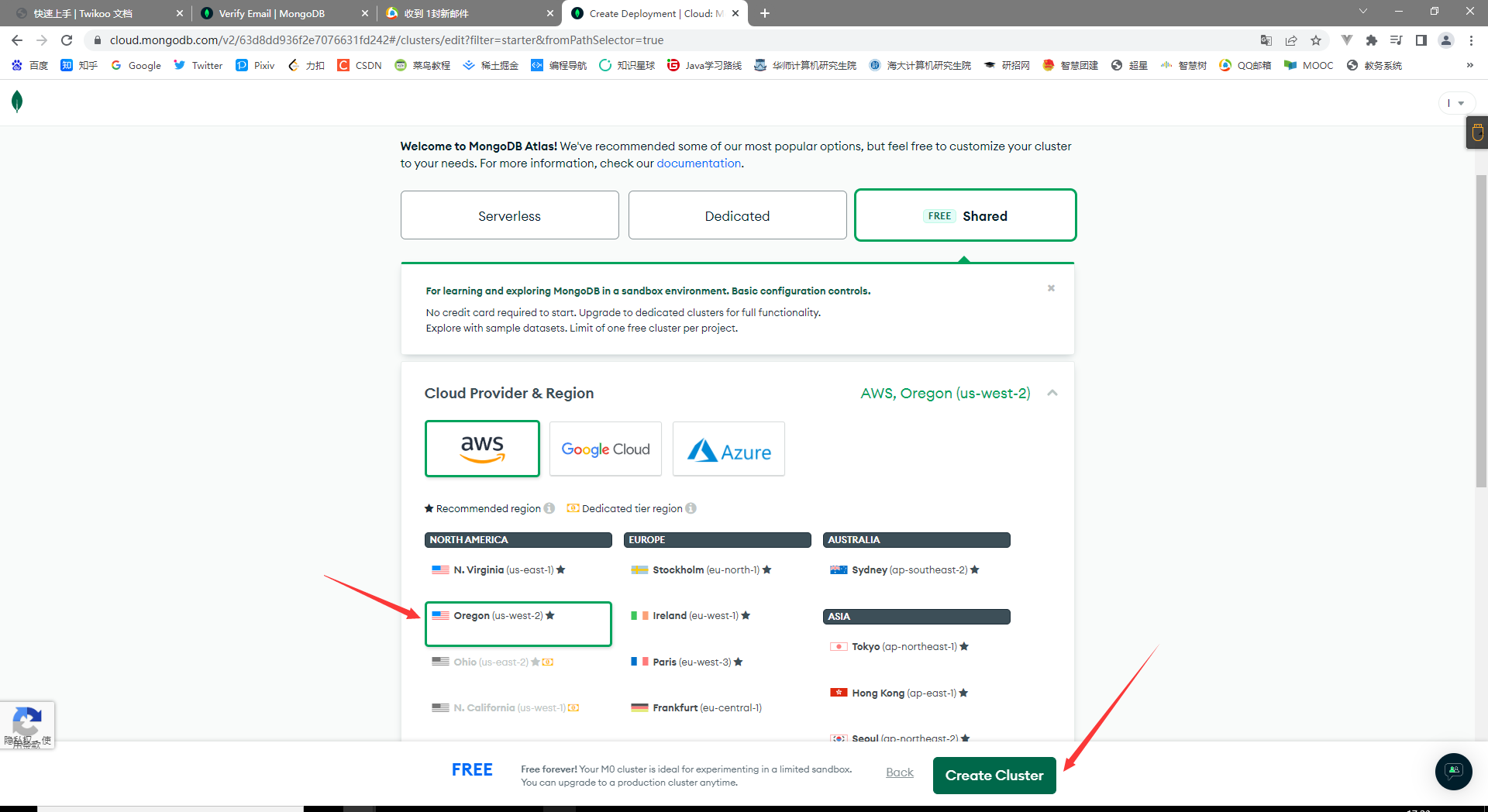
注册一个 MongoDB 账号

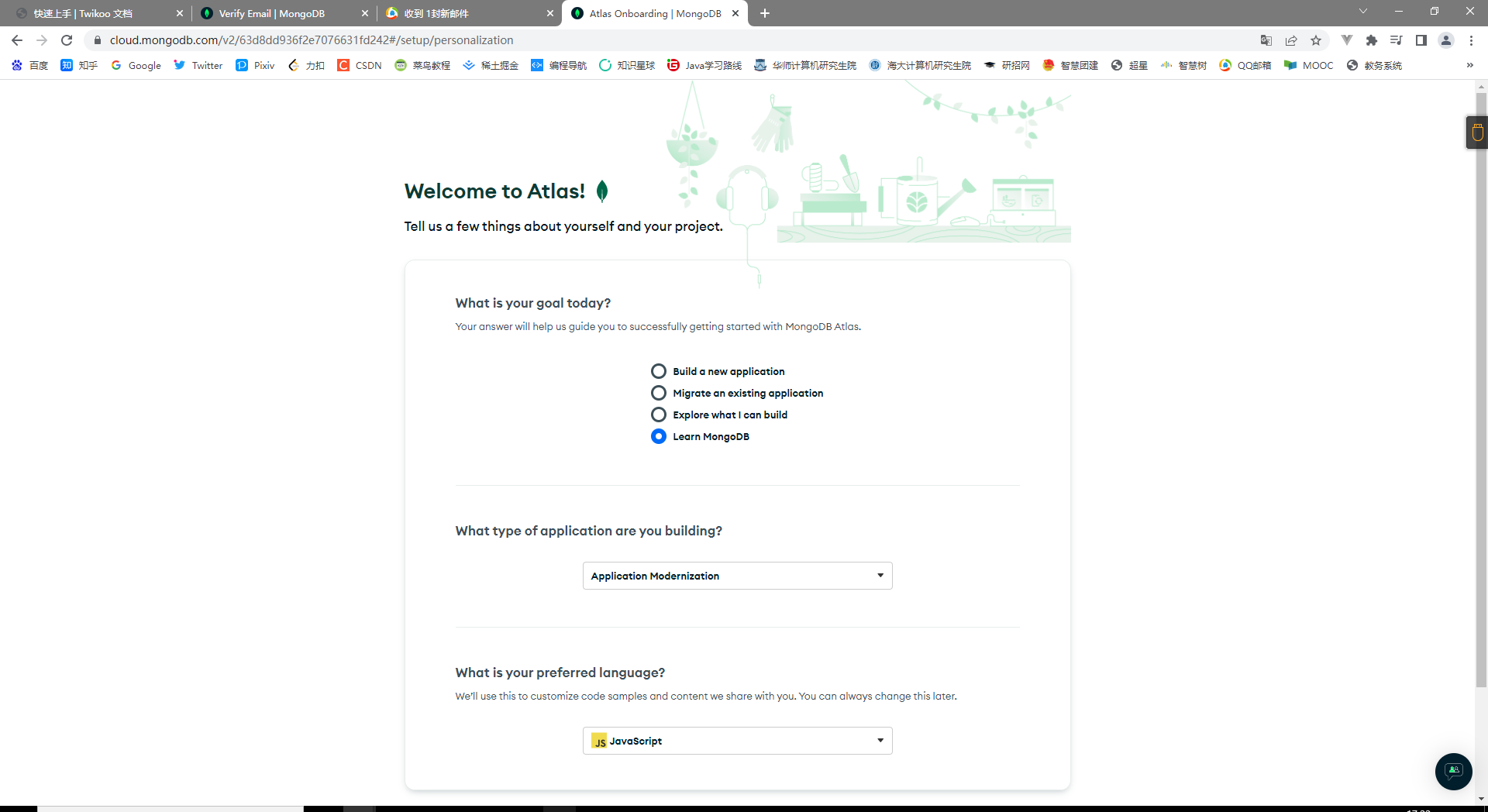
注册账号

我是这样选的

选一选

免费的

Free

再这样选

选一选

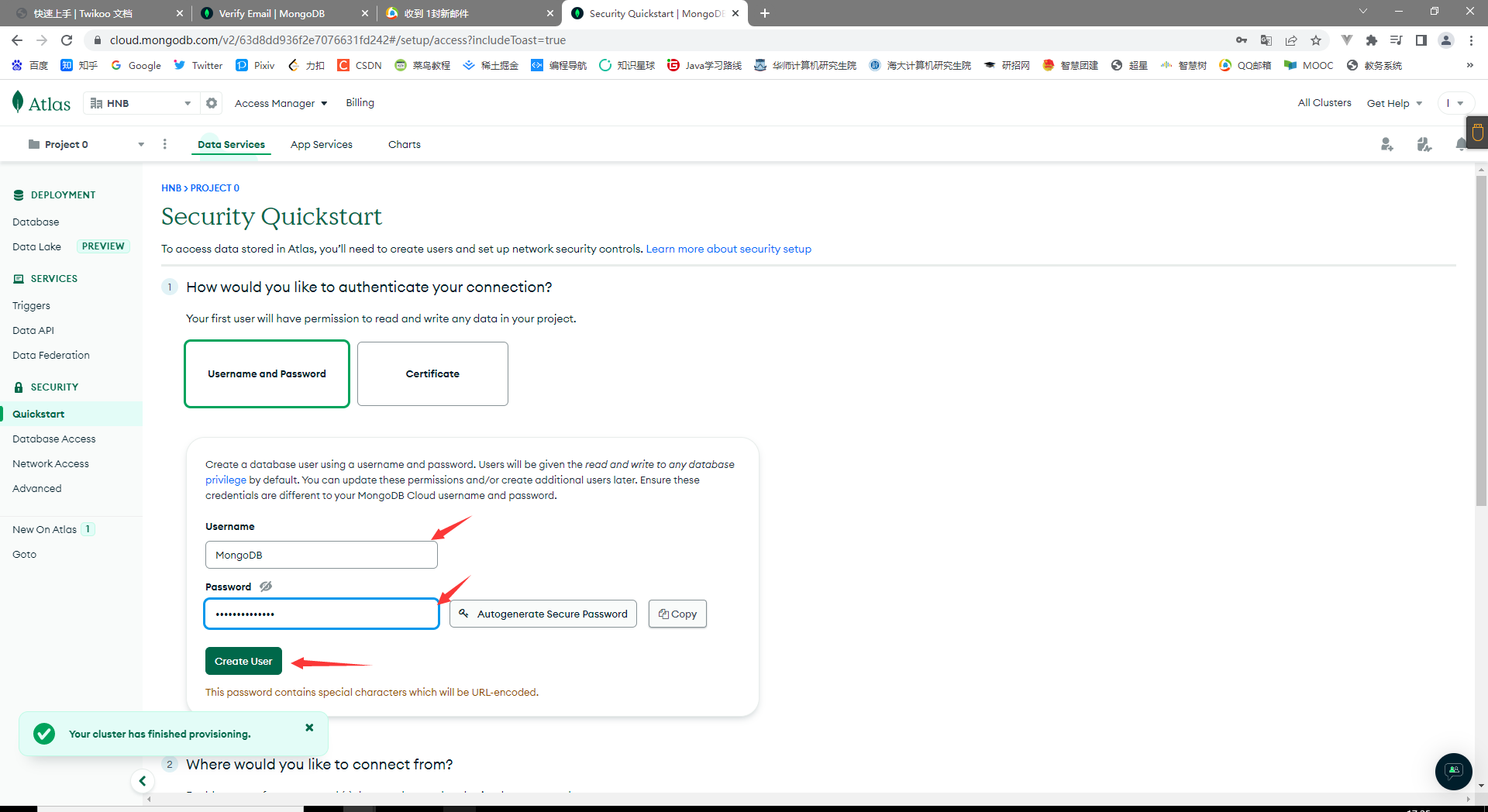
用户名密码要记住

创建数据库用户

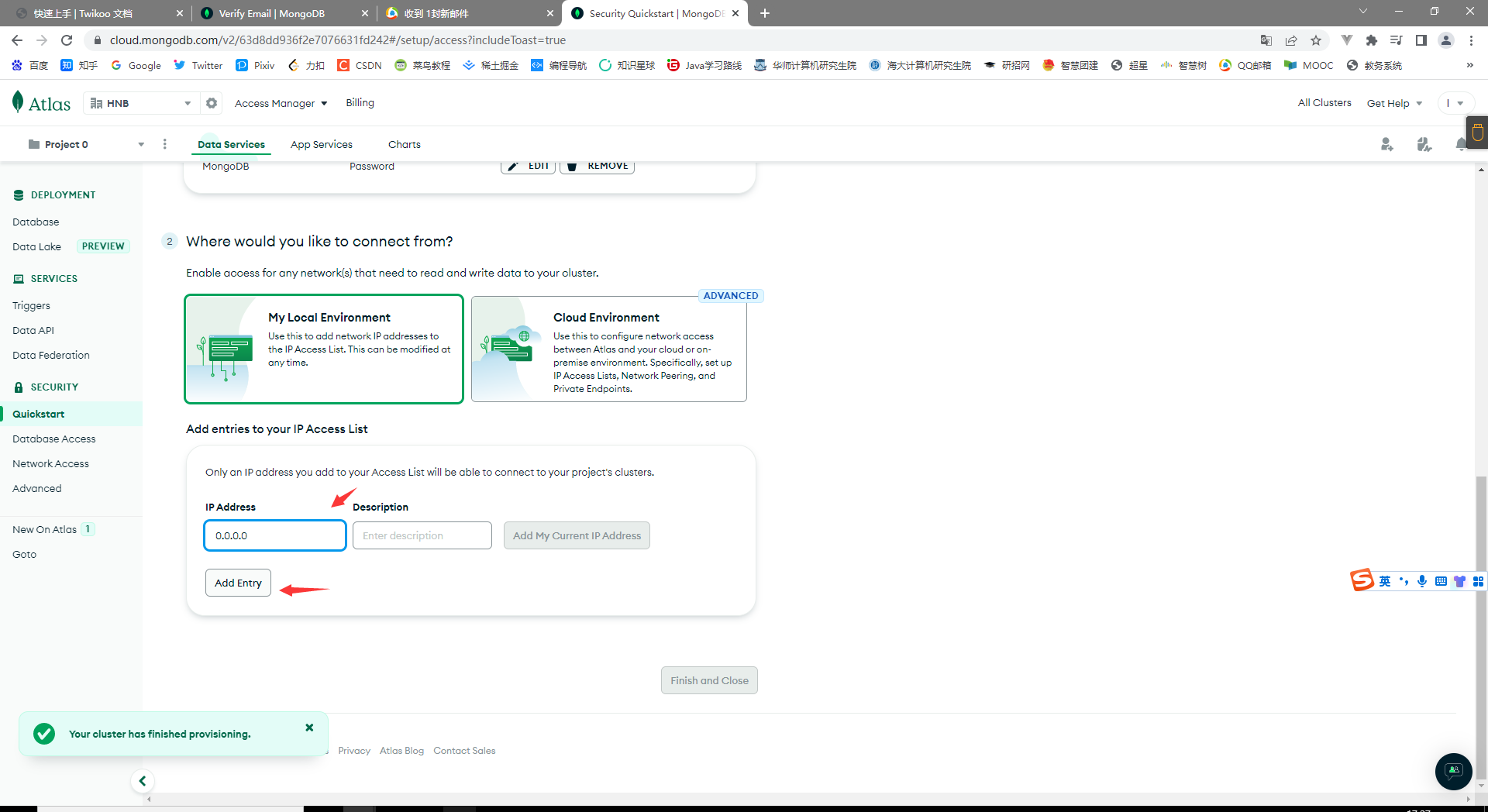
同意所有 IP

填一填

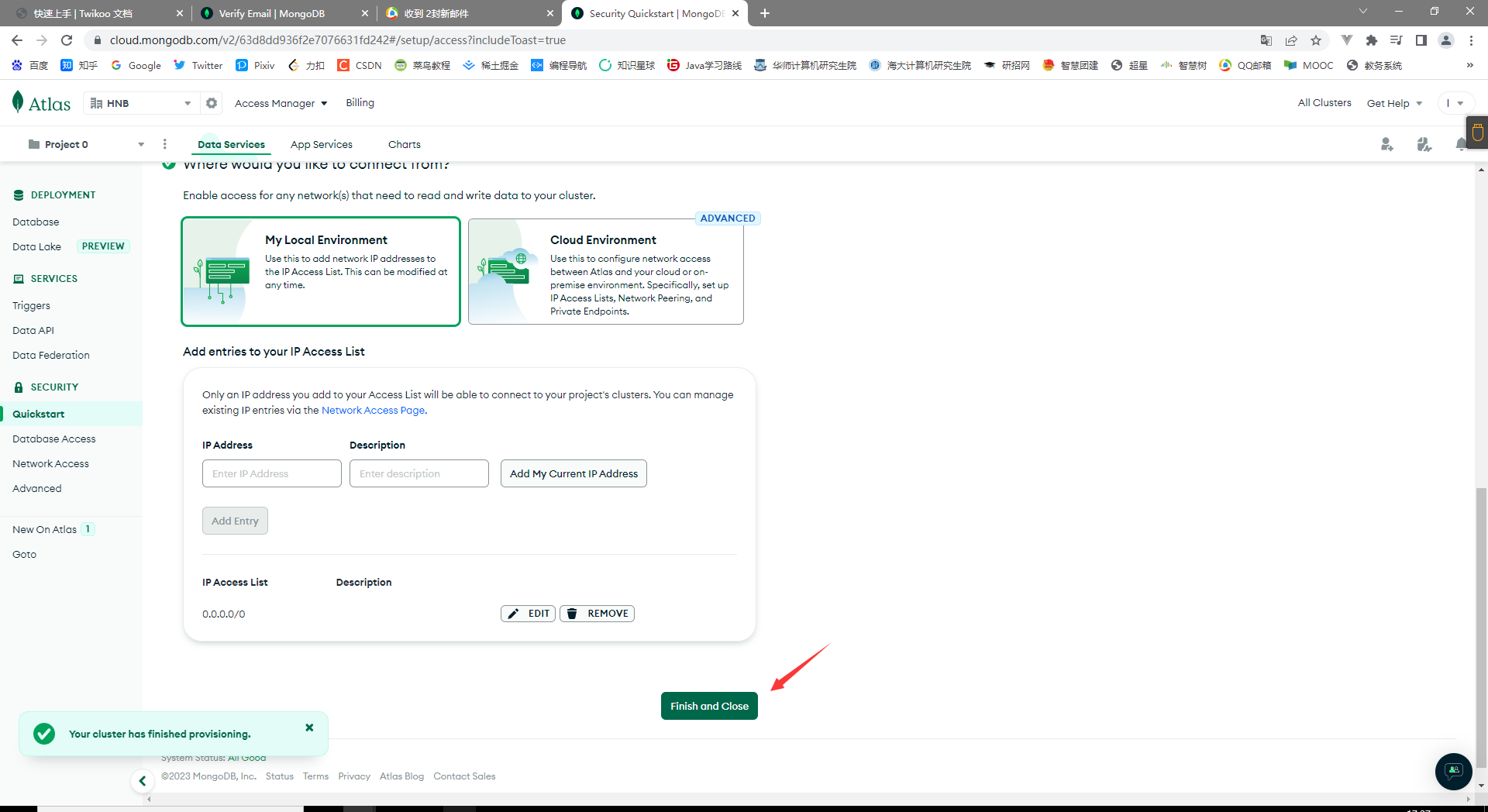
结束

结束

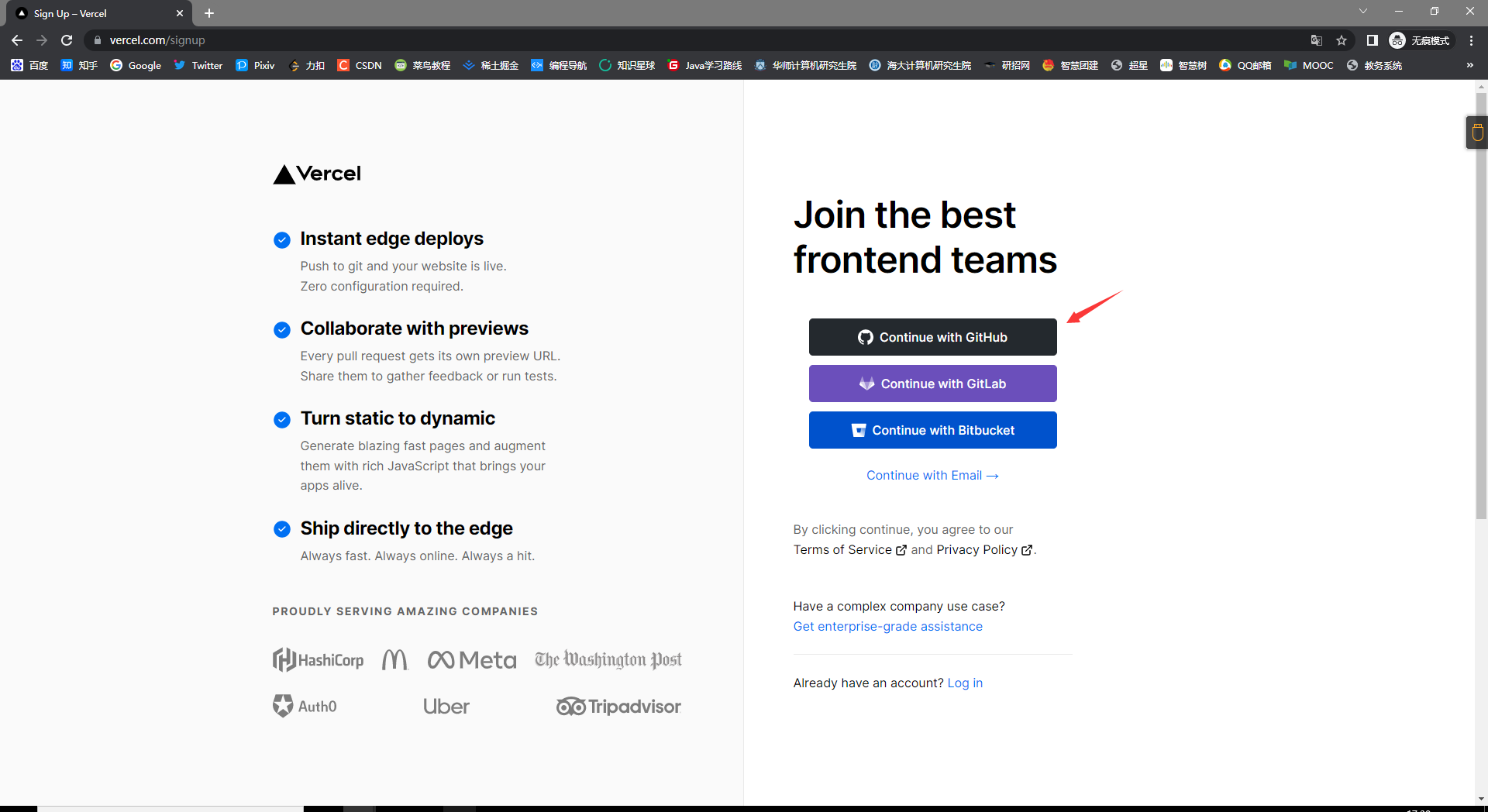
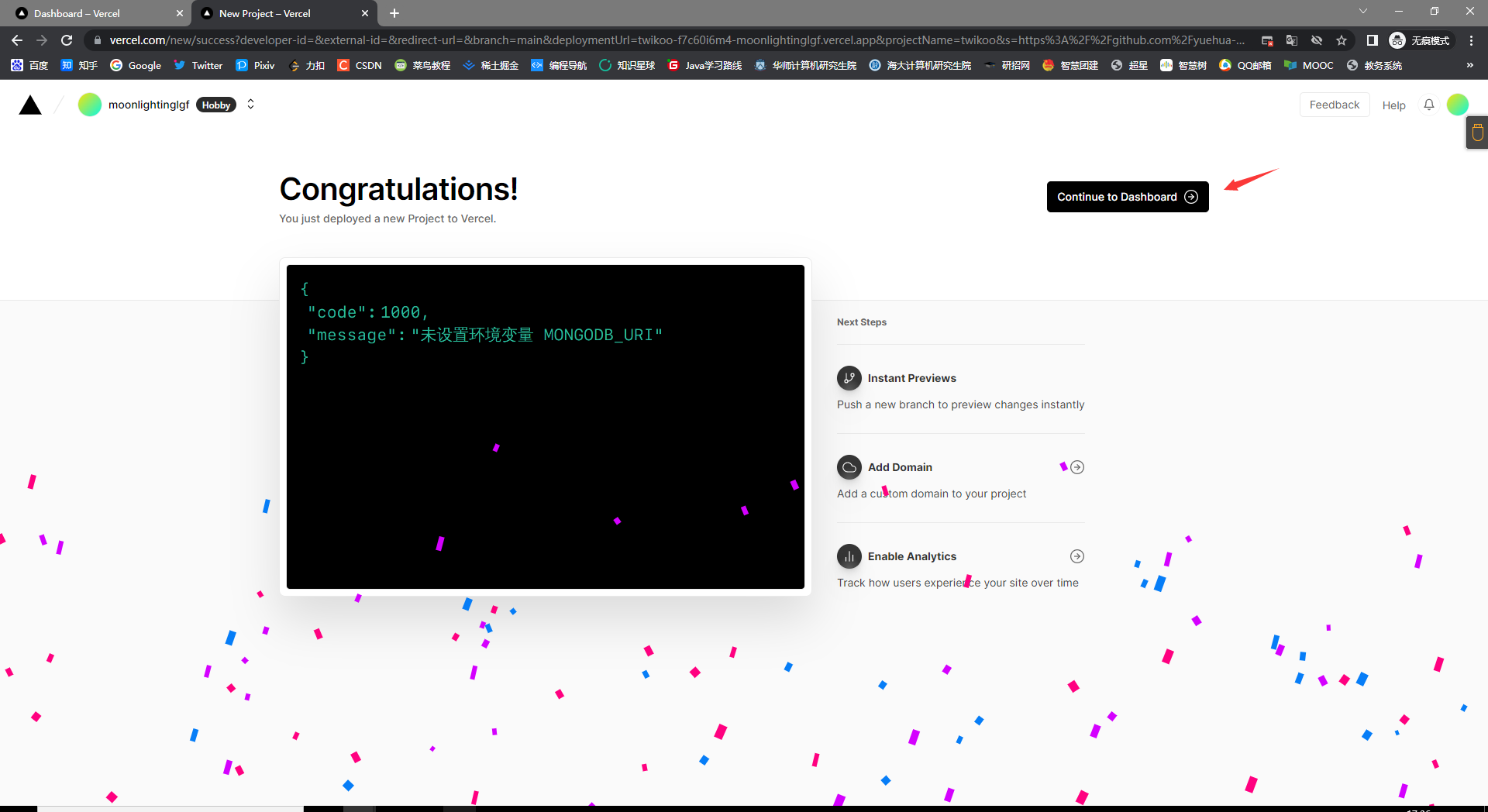
无痕模式申请 Vercel 账号

申请Vercel账号

GitHub申请

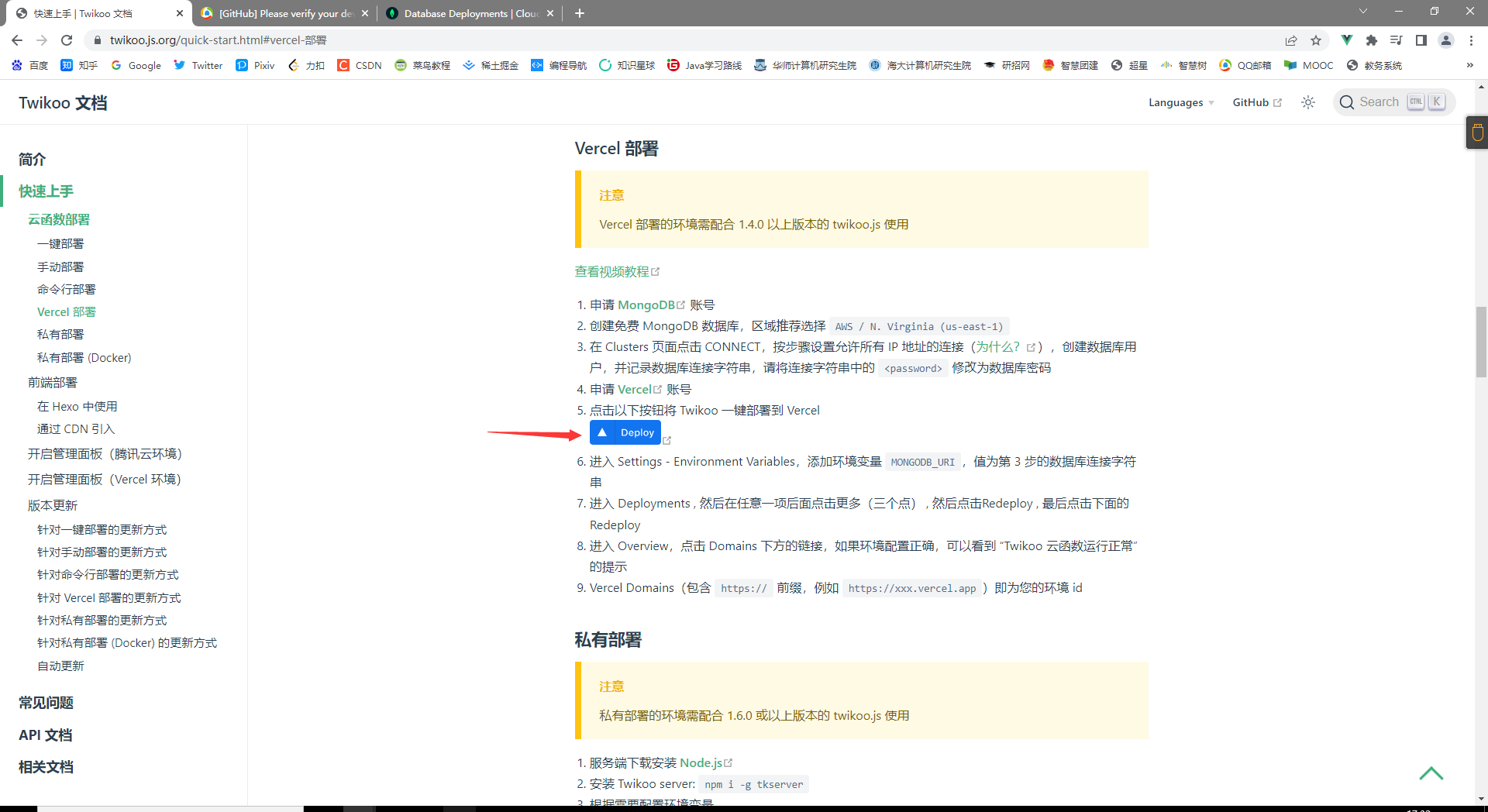
一键部署到 Vercel

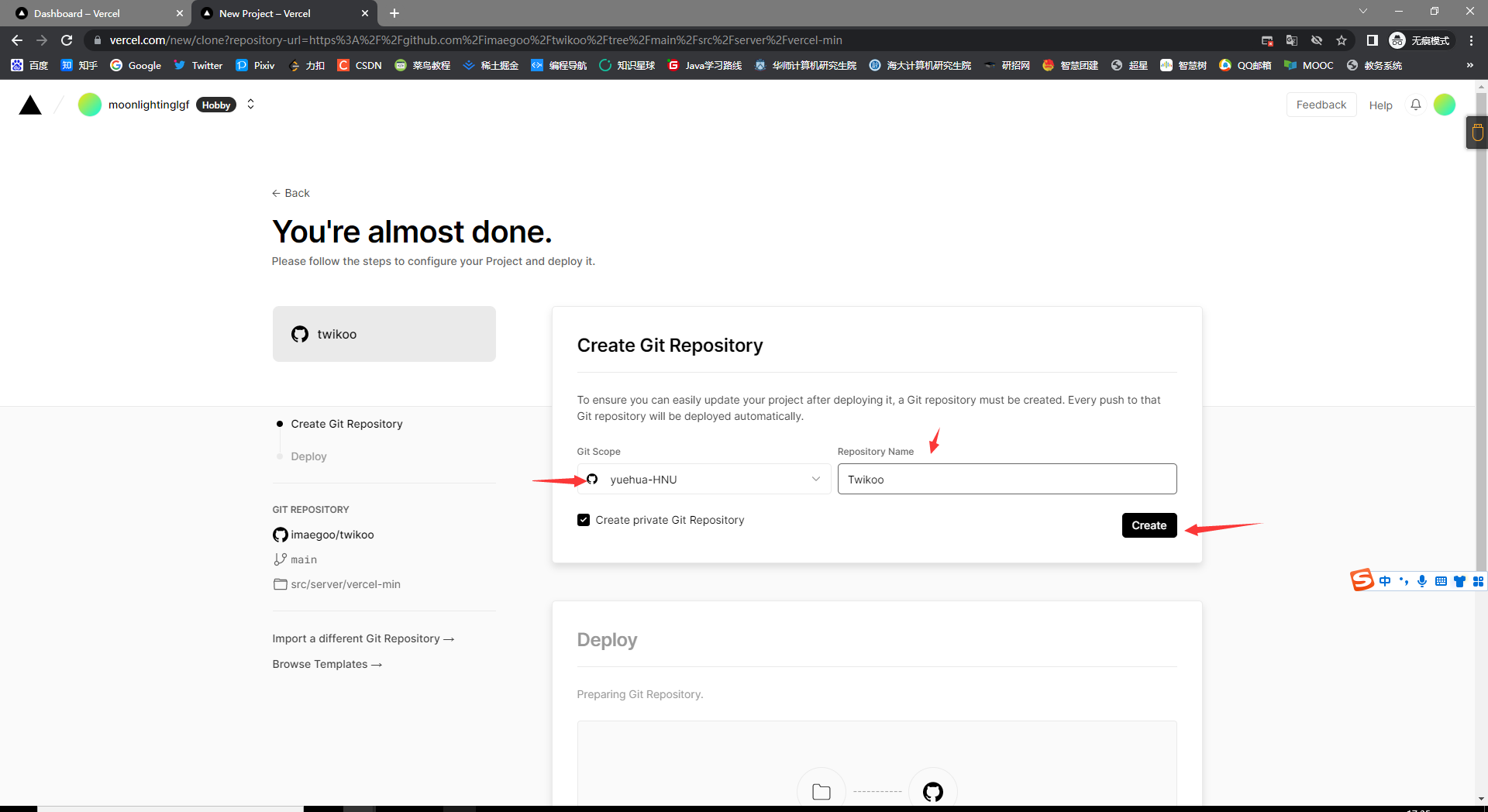
创建仓库, 随便命名

continue

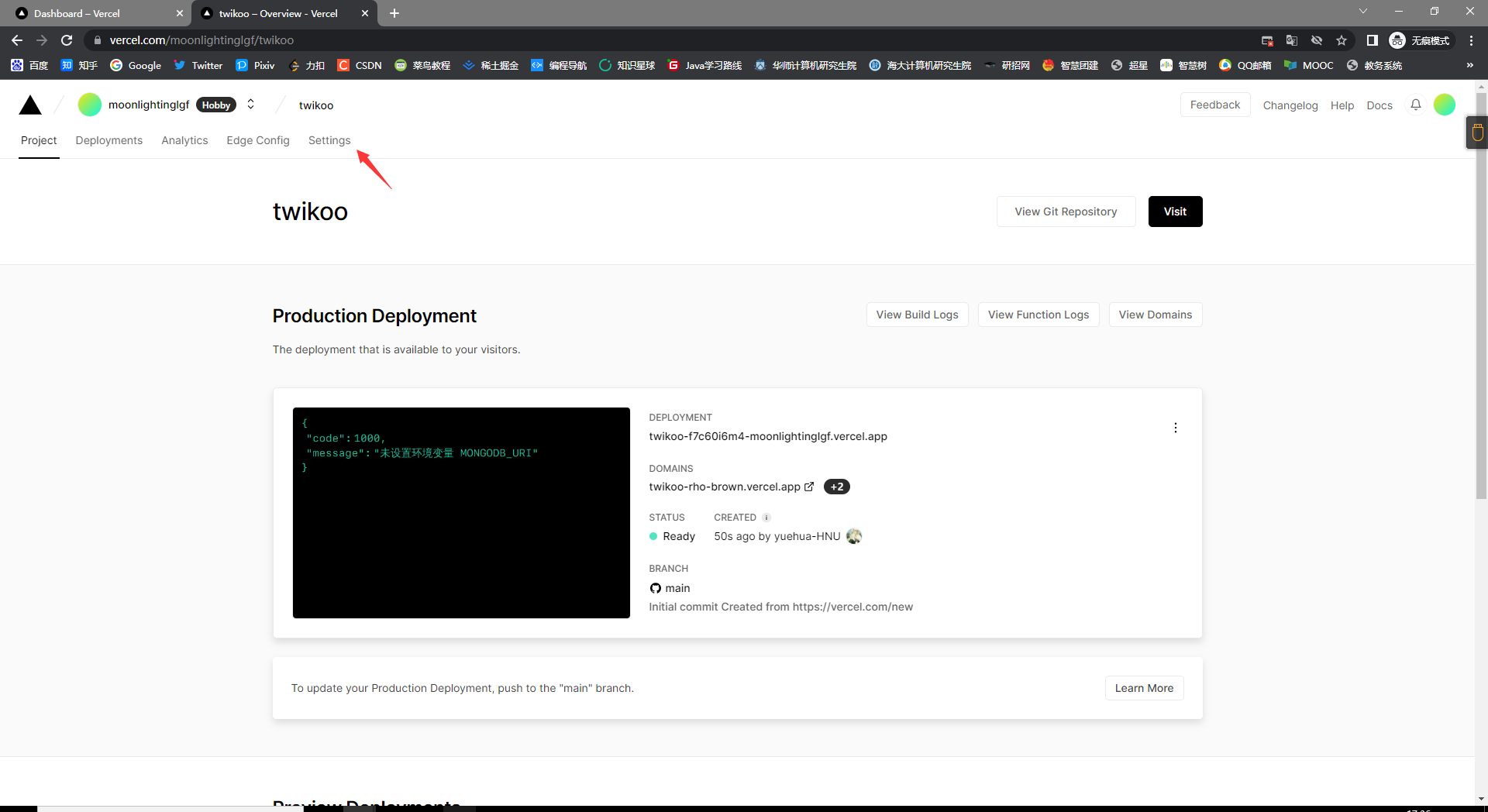
setting

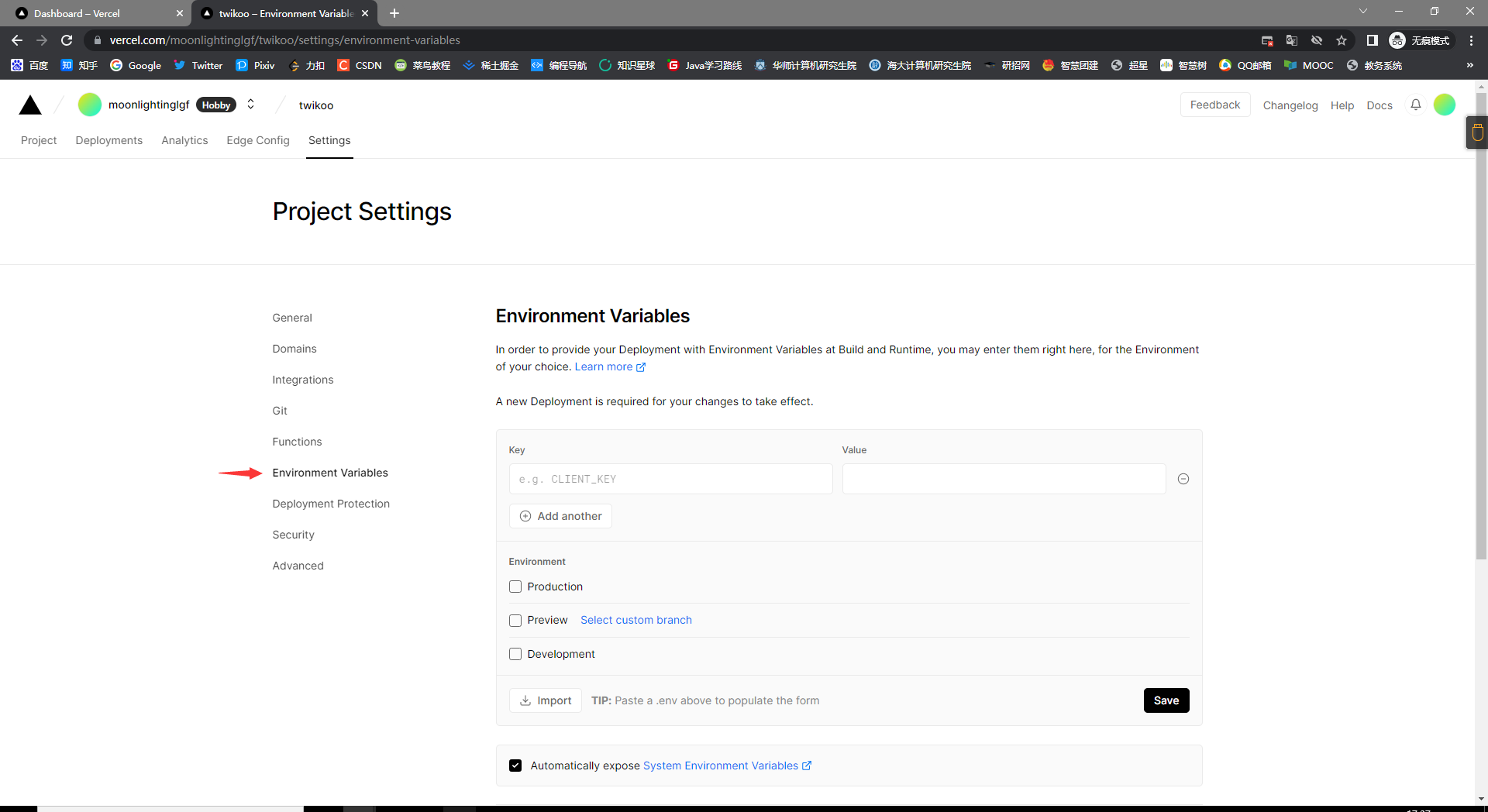
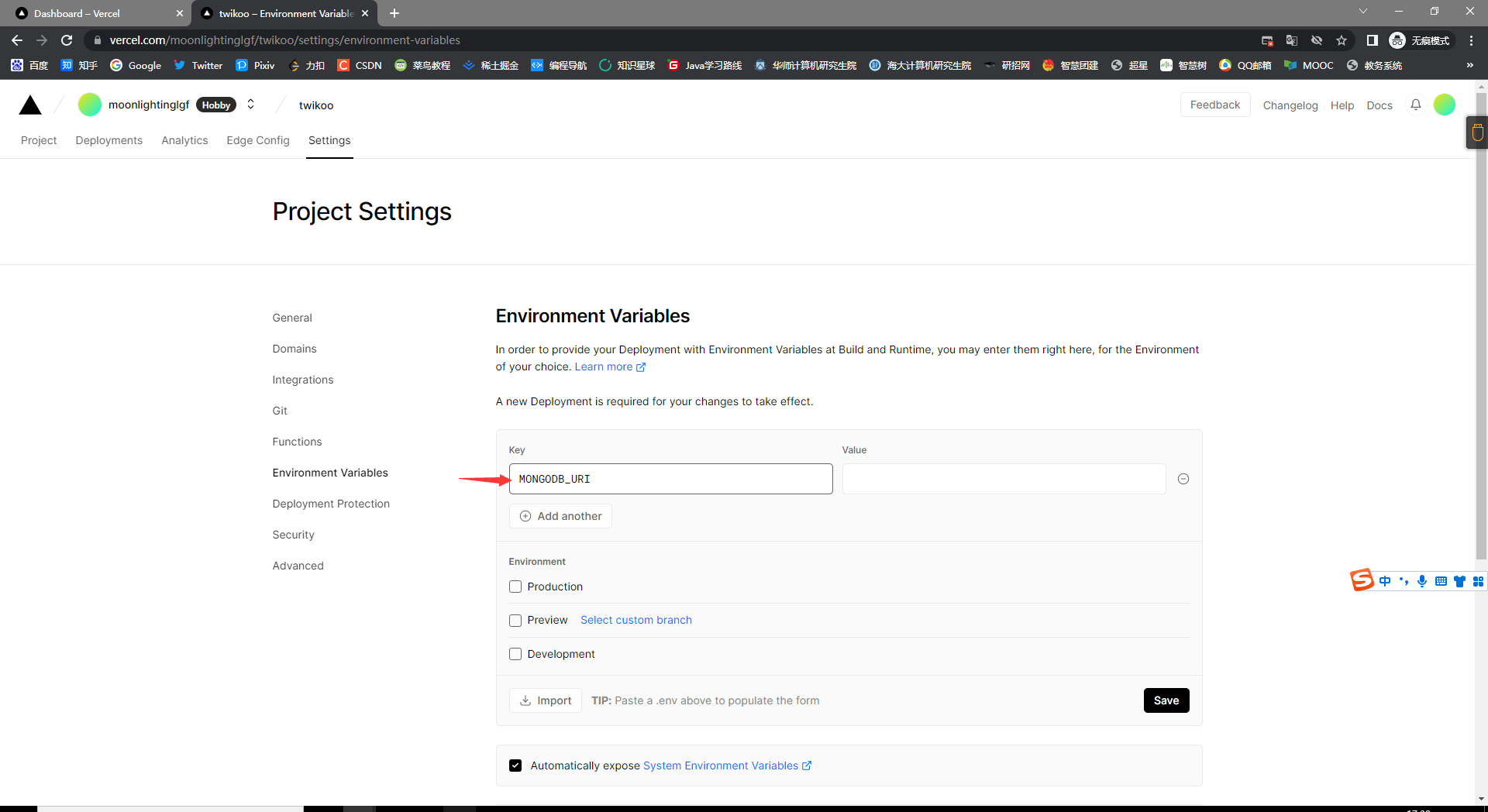
环境变量

键

键

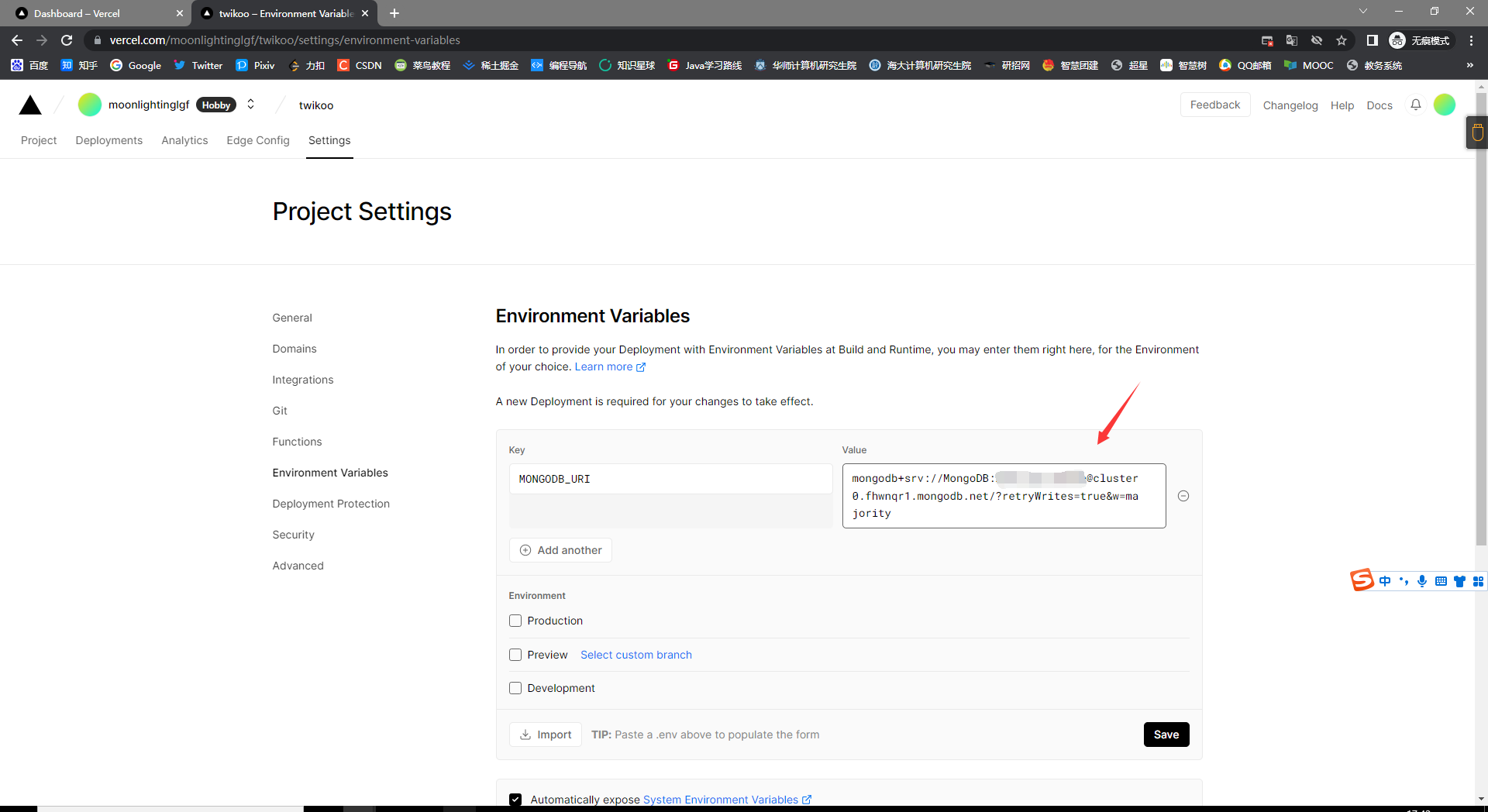
下面要好好操作 值

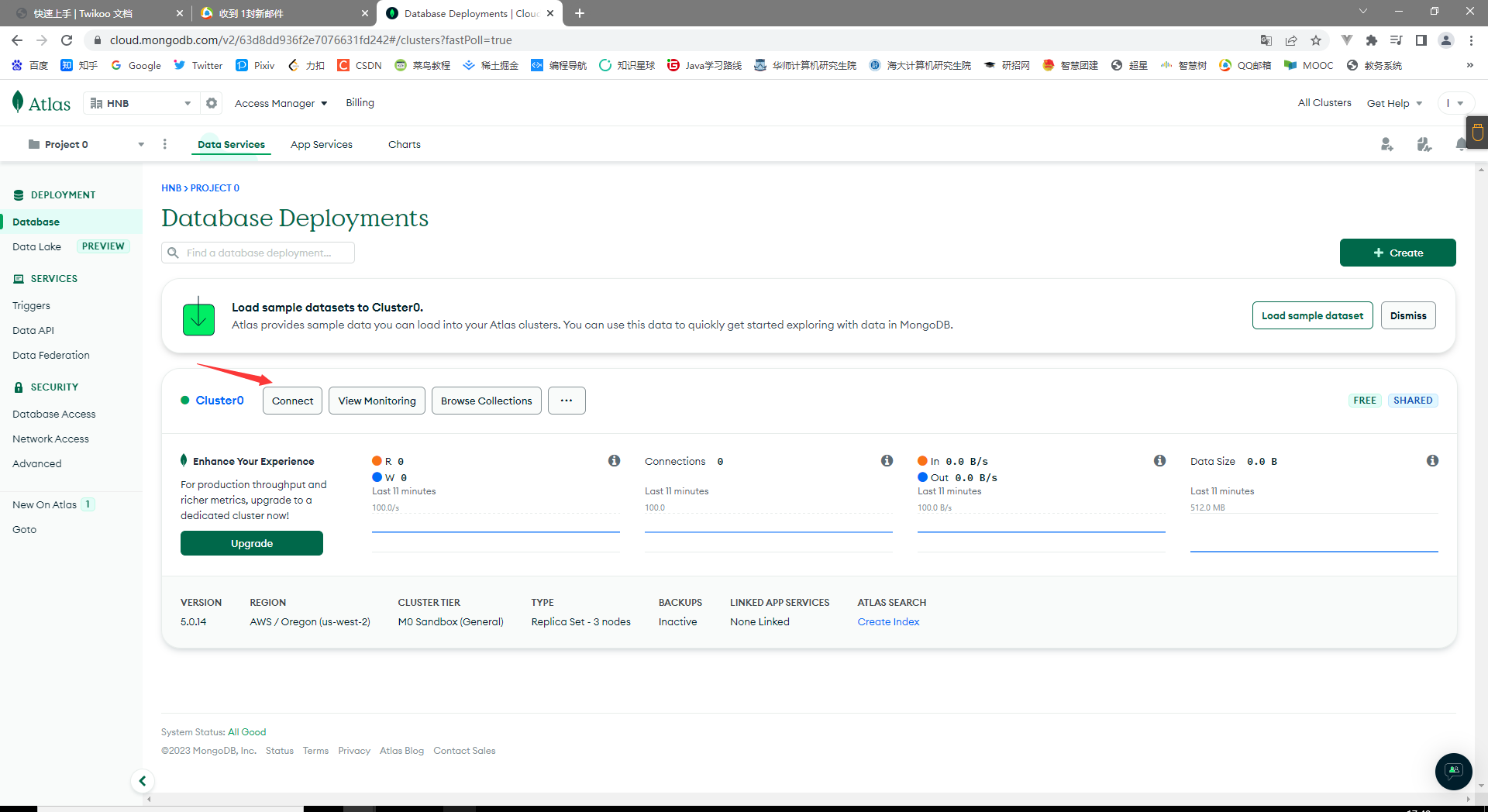
connect

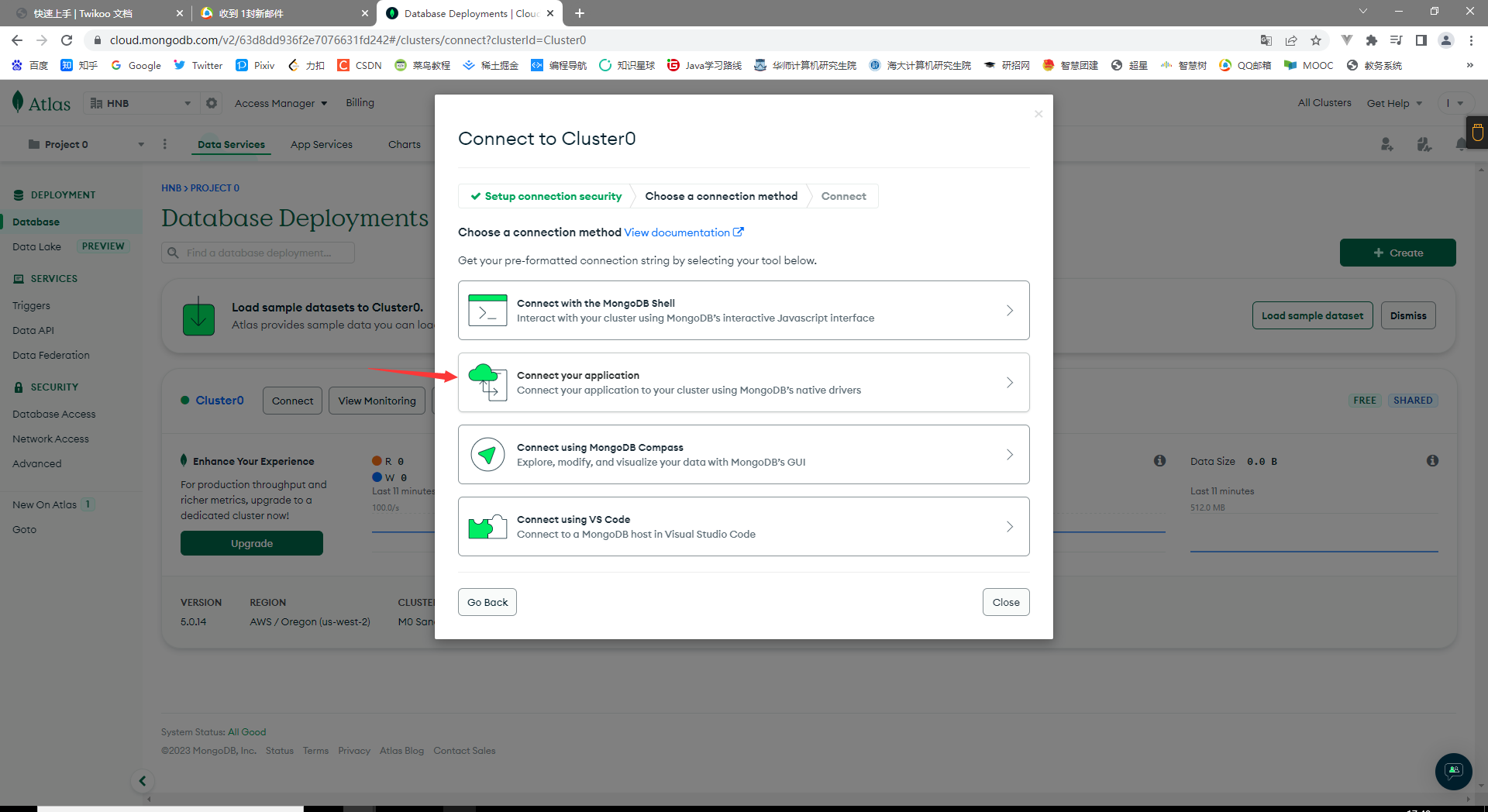
选一个

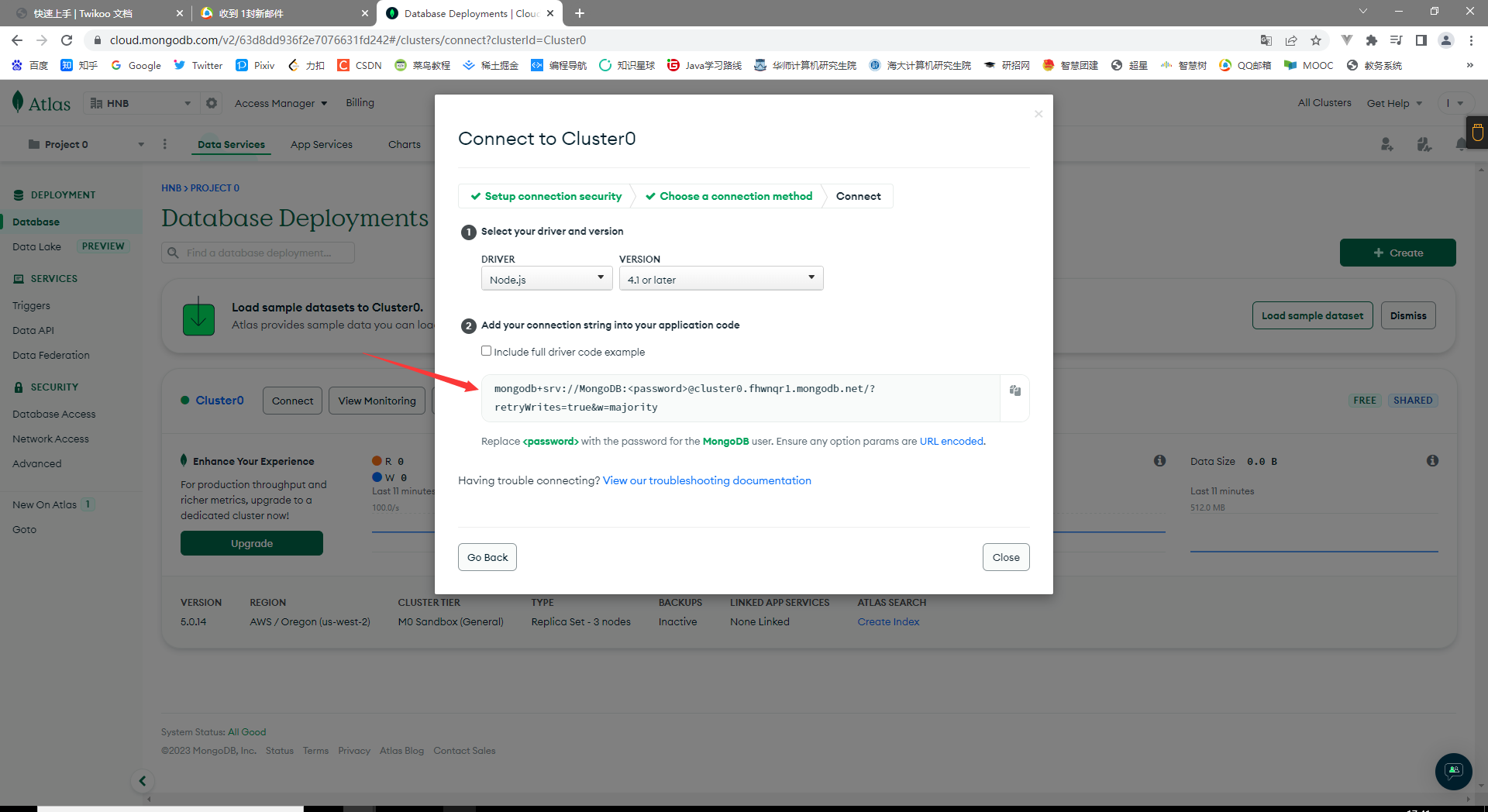
操作这个字符串, 将 <password> 改成刚刚设置的自己的密码
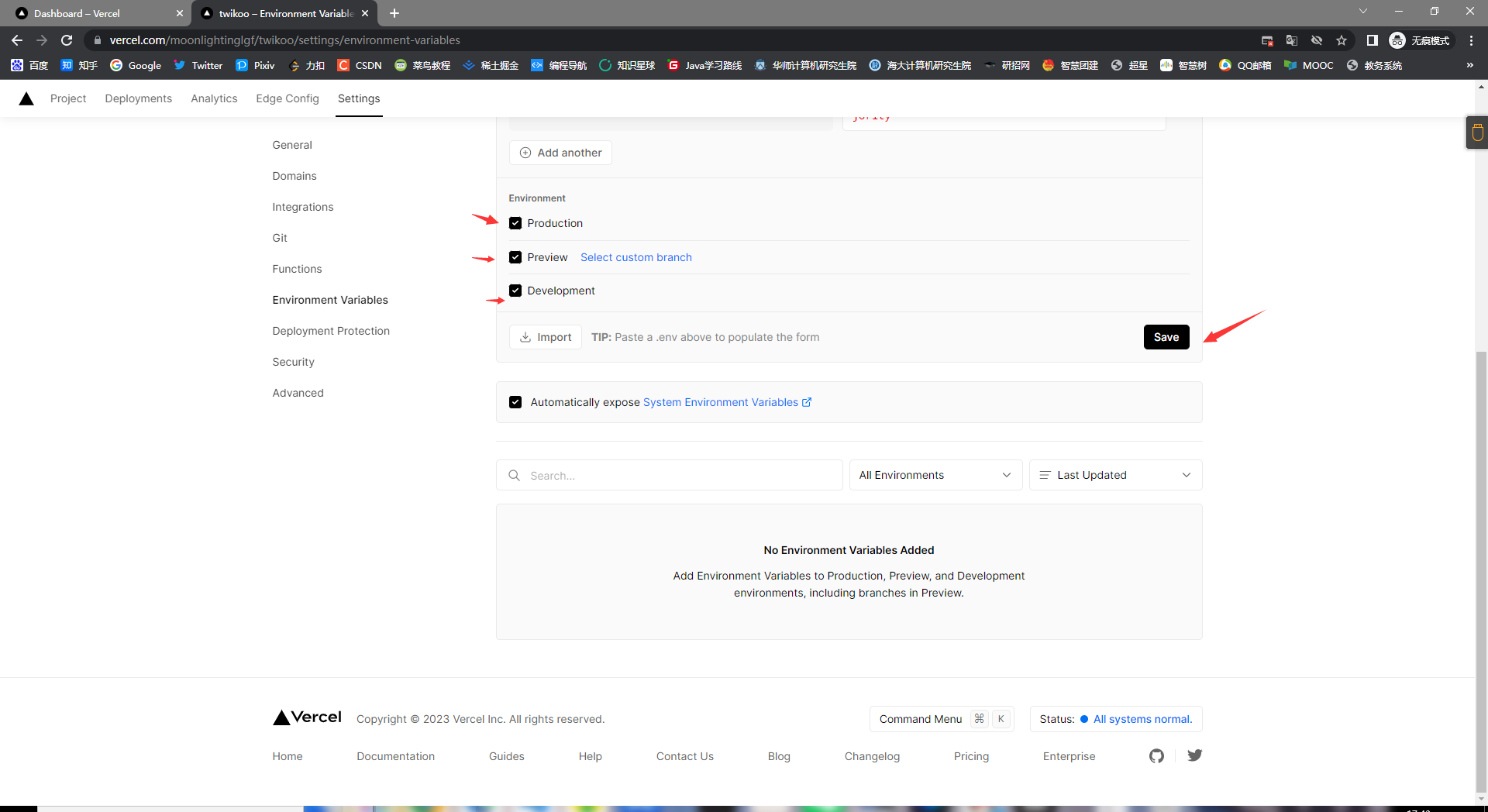
对它操作

值

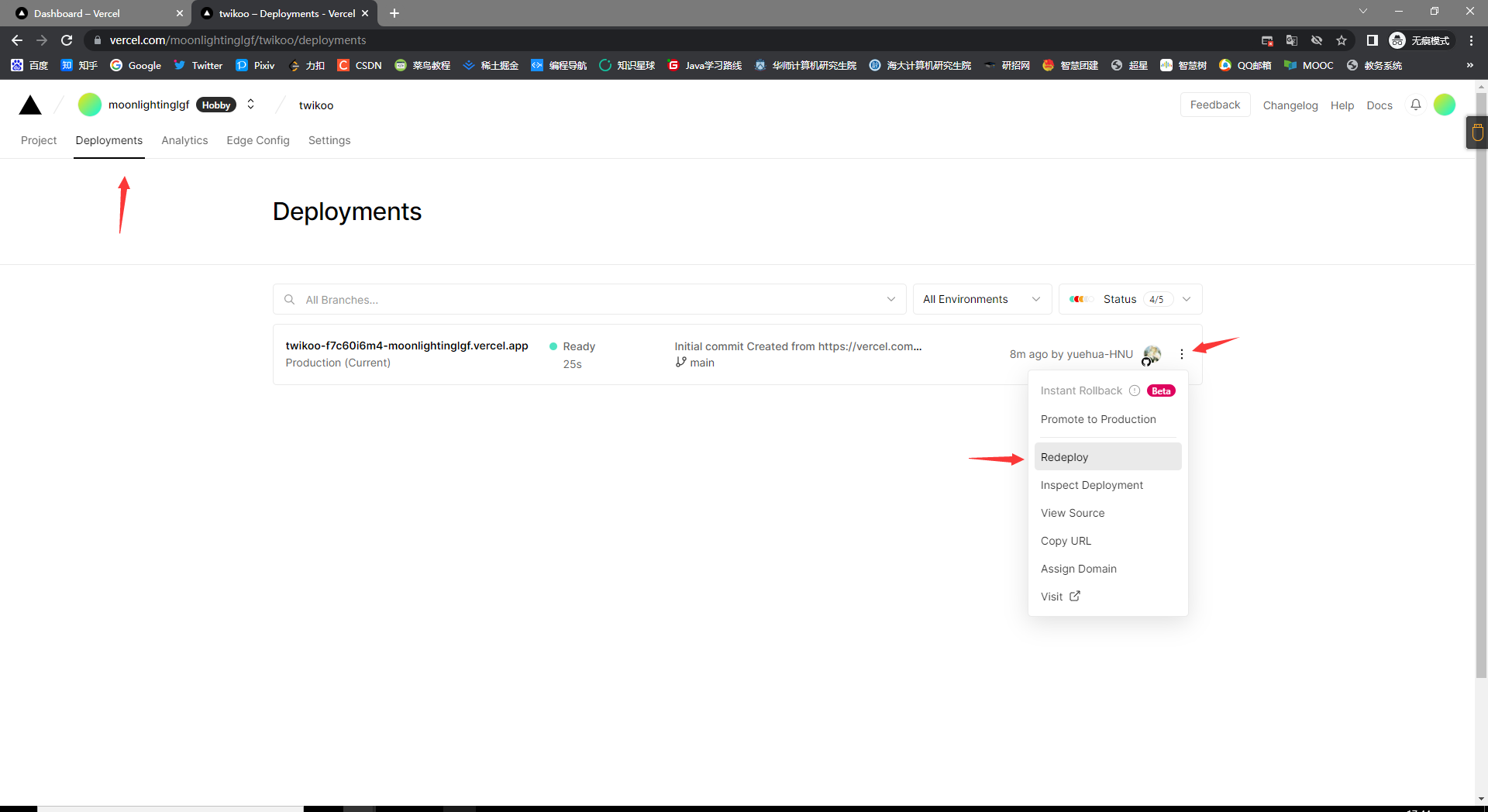
选择并保存

点这里

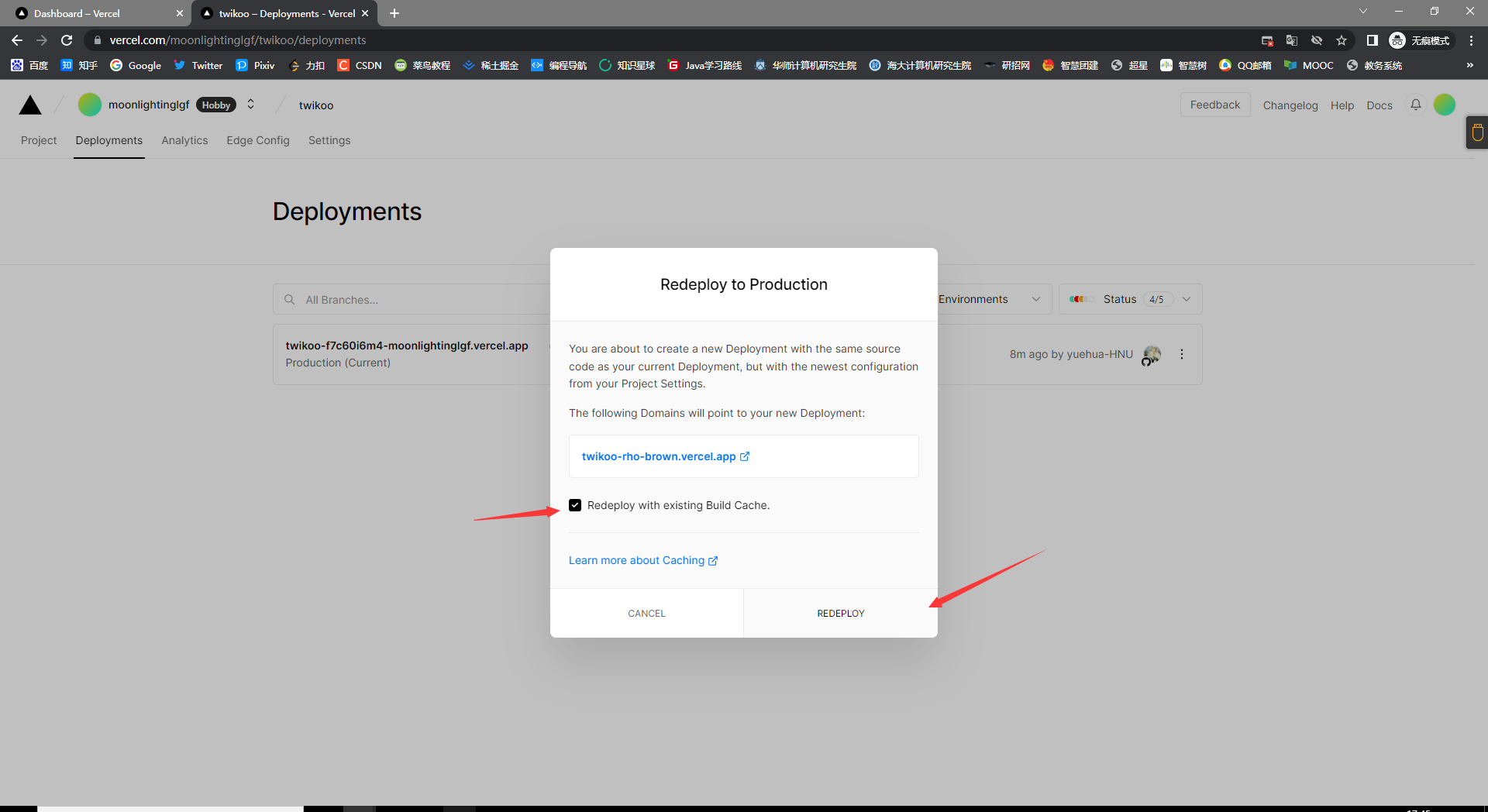
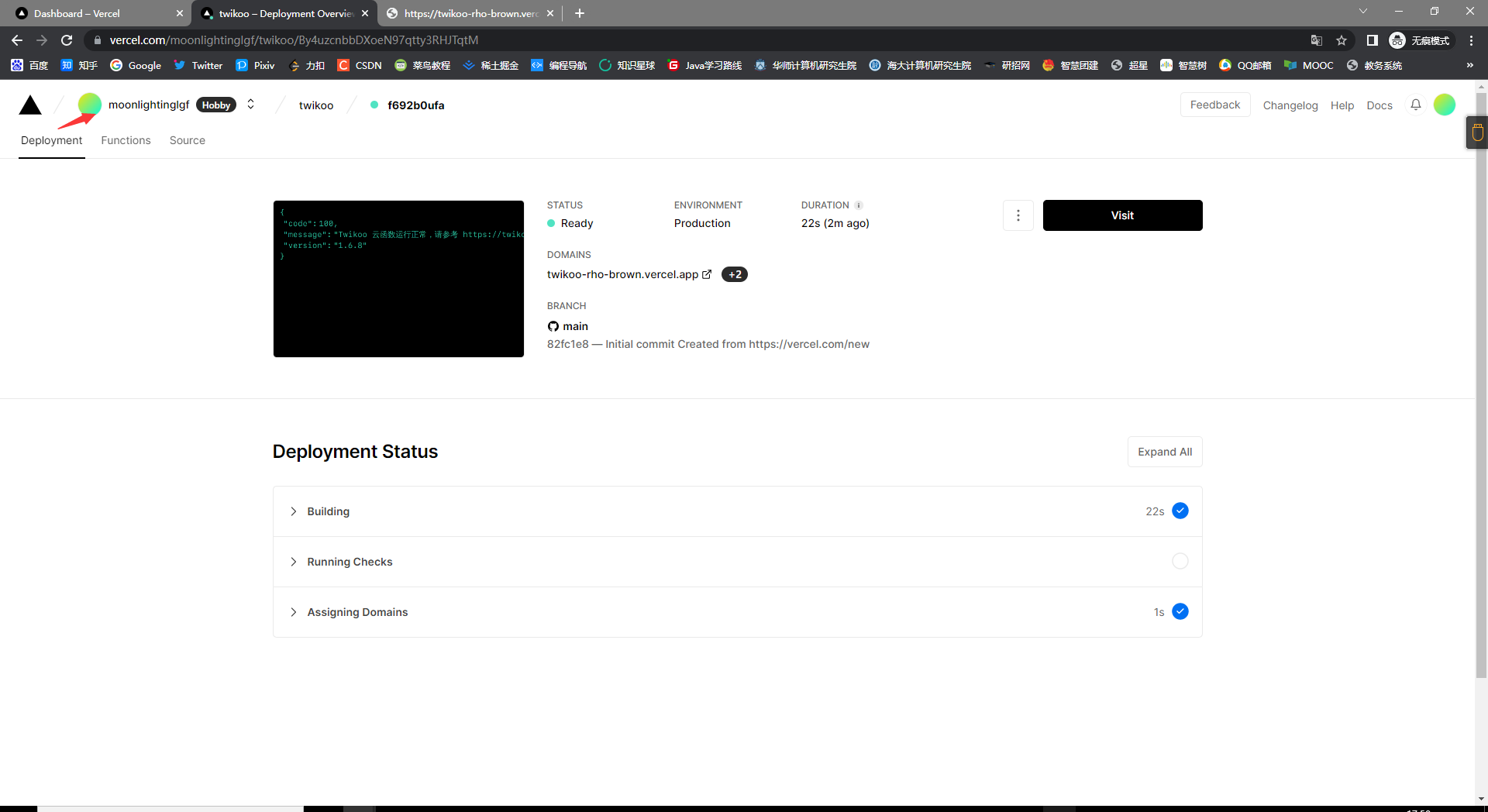
重新部署

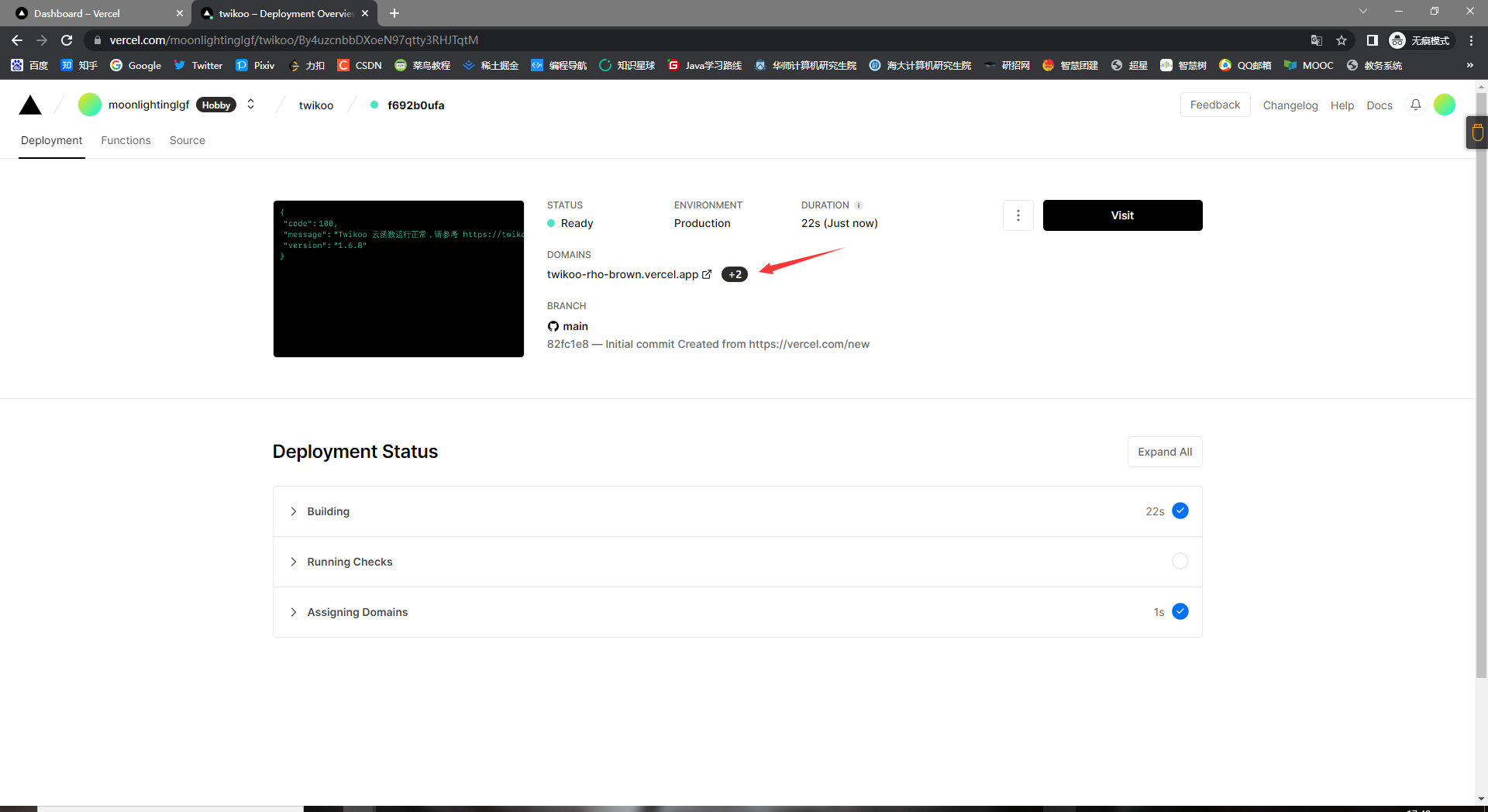
重新部署完成

后端配置完成


11.2 前端配置

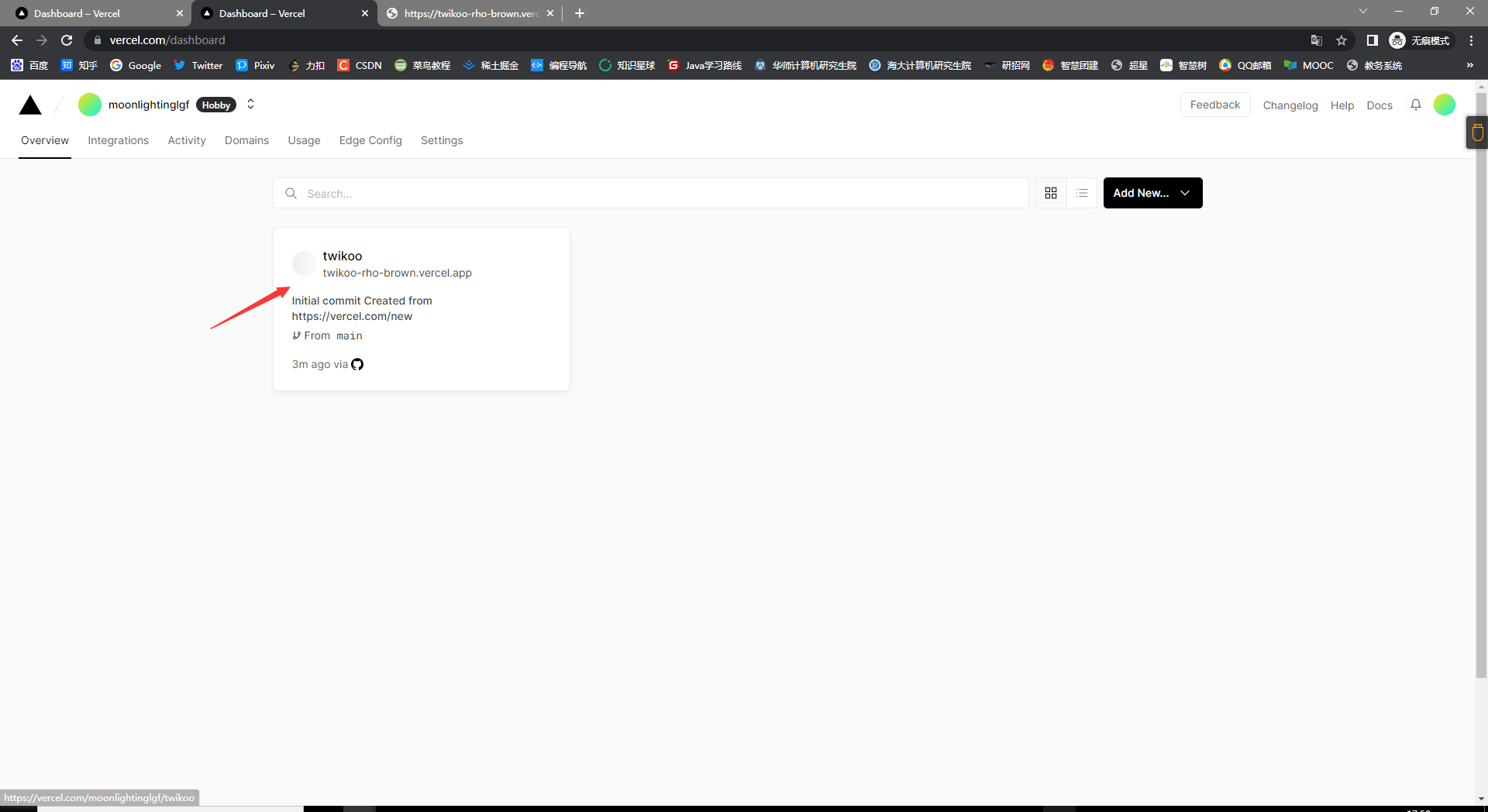
点头像回到控制台

进来仓库

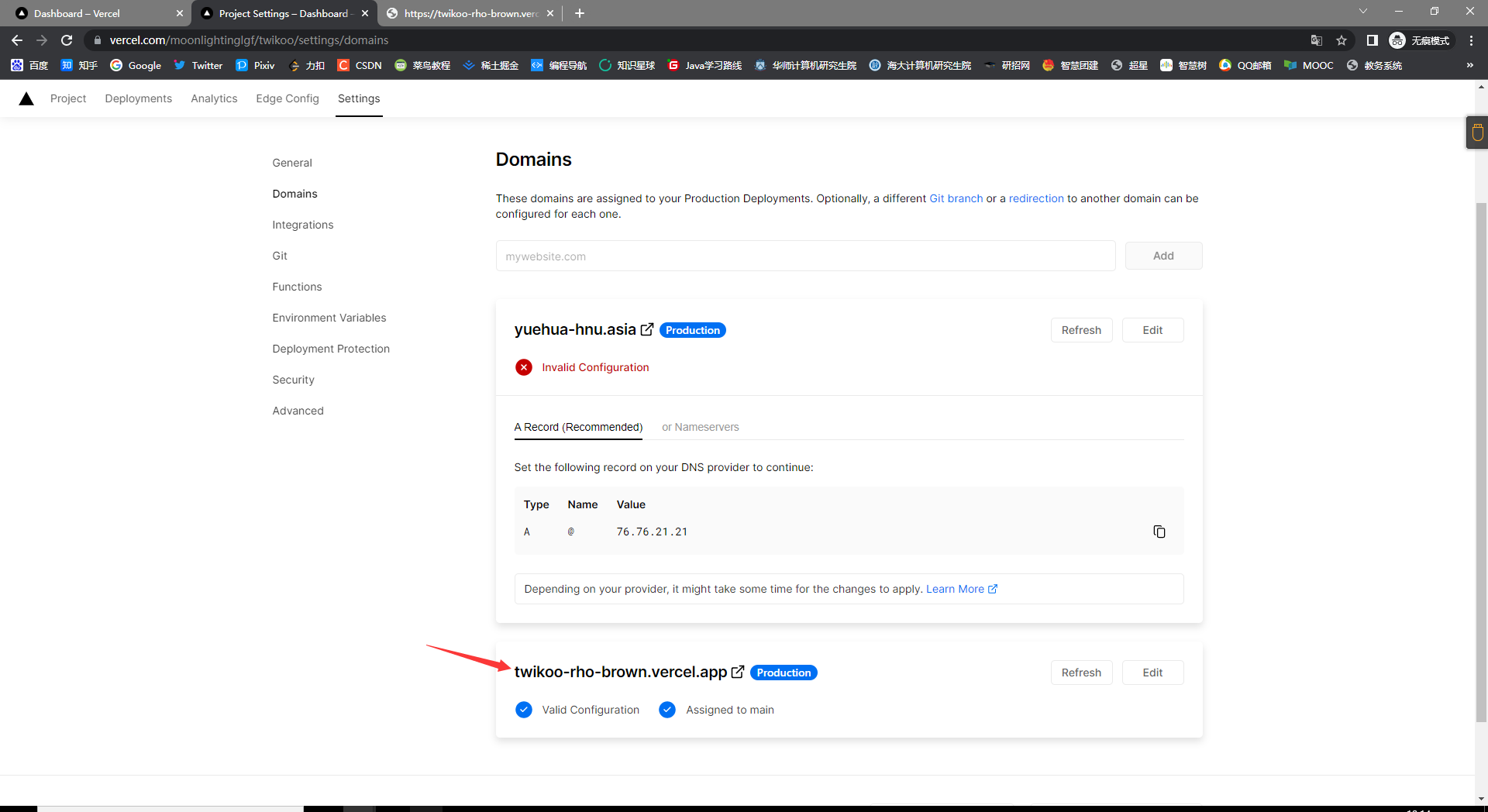
这一步主要是防止背墙, 但是我这里没办法了只能先不设置二级域名, 直接用下面的吧, 后期在搞大陆可以访问的
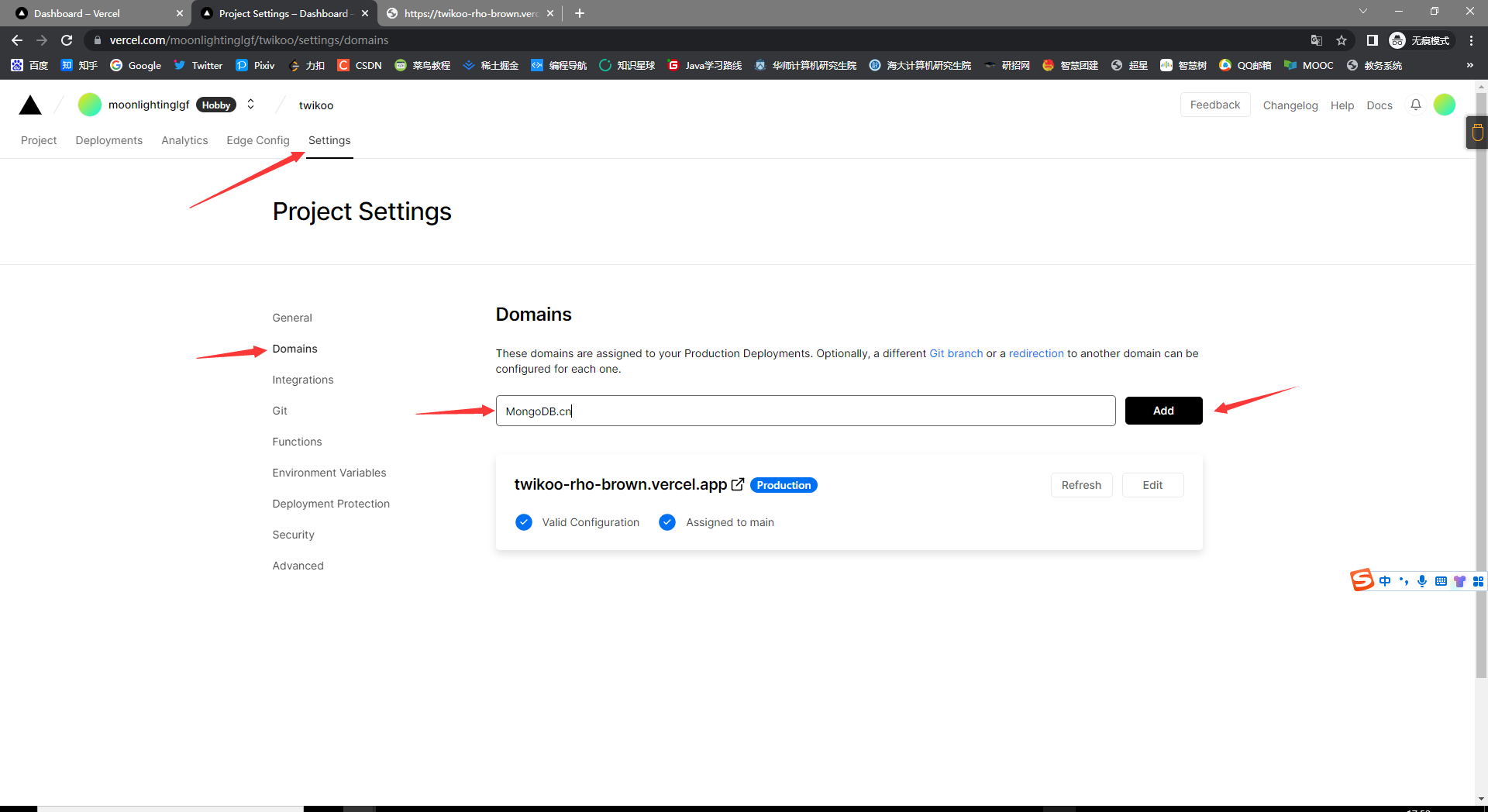
设置一个二级域名

先将就用这个一级域名

一级域名

进入主题配置文件

配置

配置

1
2
3
4
5
6
7
8
9
10
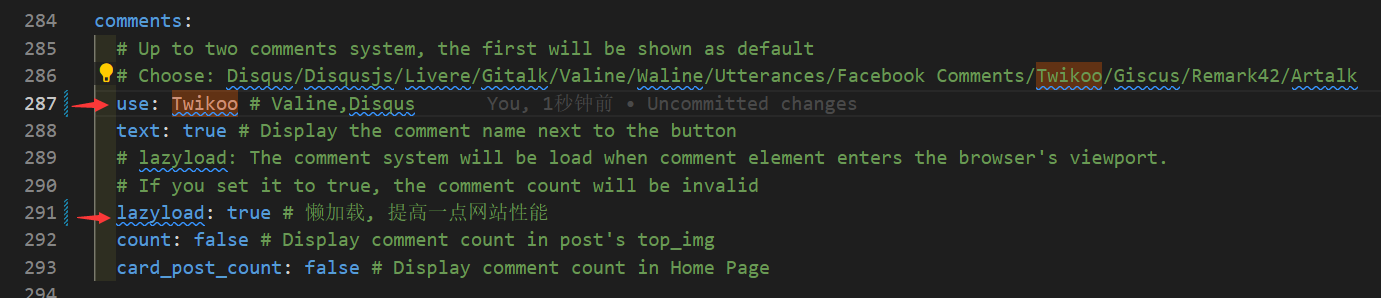
comments:
# Up to two comments system, the first will be shown as default
# Choose: Disqus/Disqusjs/Livere/Gitalk/Valine/Waline/Utterances/Facebook Comments/Twikoo/Giscus/Remark42/Artalk
use: Twikoo # Valine,Disqus
text: true # Display the comment name next to the button
# lazyload: The comment system will be load when comment element enters the browser's viewport.
# If you set it to true, the comment count will be invalid
lazyload: true # 懒加载, 提高一点网站性能
count: false # Display comment count in post's top_img
card_post_count: false # Display comment count in Home Page
1
2
3
4
5
6
7
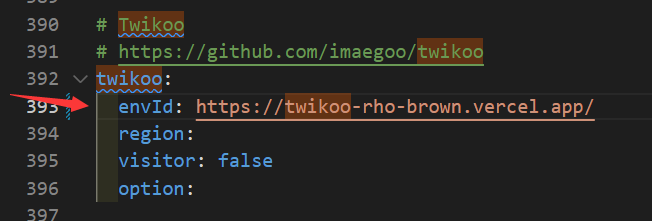
# Twikoo
# https://github.com/imaegoo/twikoo
twikoo:
envId: https://twikoo-rho-brown.vercel.app/
region:
visitor: false
option:

记得设置后台密码

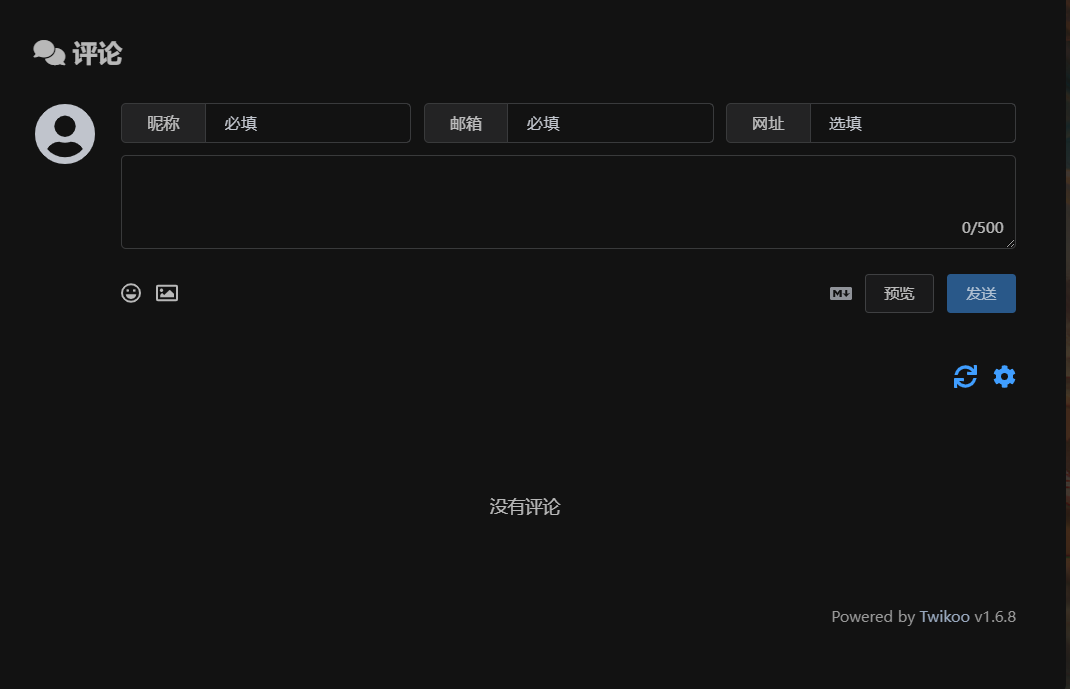
预览


十二、博客文章统计图

12.1 新建 charts 页面

1
hexo new page charts

新建 charts


12.2 安装插件

1
npm i cheerio --save

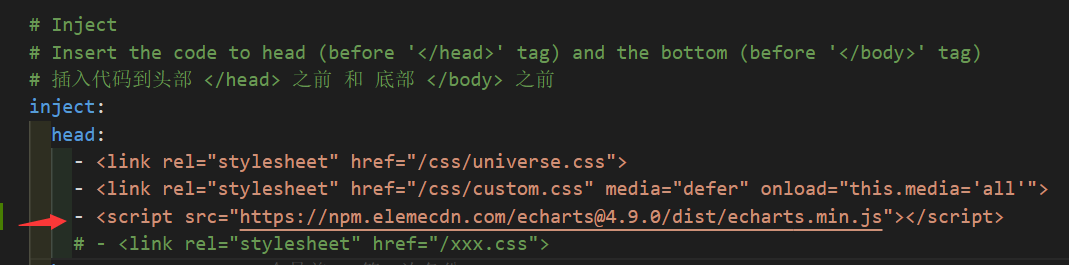
12.3 引入 ECharts.js

1
2
3
4
5
inject:
head:
- <link rel="stylesheet" href="/css/universe.css">
- <link rel="stylesheet" href="/css/custom.css" media="defer" onload="this.media='all'">
- <script src="https://npm.elemecdn.com/echarts@4.9.0/dist/echarts.min.js"></script>

引入 Echarts.js


12.4 文章统计代码

hexo-theme-butterfly\scripts\helpers\ 文件下新建 charts.js 文件

不要管缩进, 复制就完了

1
2
3
4
5
6
7
8
9
10
11
12
13
14
15
16
17
18
19
20
21
22
23
24
25
26
27
28
29
30
31
32
33
34
35
36
37
38
39
40
41
42
43
44
45
46
47
48
49
50
51
52
53
54
55
56
57
58
59
60
61
62
63
64
65
66
67
68
69
70
71
72
73
74
75
76
77
78
79
80
81
82
83
84
85
86
87
88
89
90
91
92
93
94
95
96
97
98
99
100
101
102
103
104
105
106
107
108
109
110
111
112
113
114
115
116
117
118
119
120
121
122
123
124
125
126
127
128
129
130
131
132
133
134
135
136
137
138
139
140
141
142
143
144
145
146
147
148
149
150
151
152
153
154
155
156
157
158
159
160
161
162
163
164
165
166
167
168
169
170
171
172
173
174
175
176
177
178
179
180
181
182
183
184
185
186
187
188
189
190
191
192
193
194
195
196
197
198
199
200
201
202
203
204
205
206
207
208
209
210
211
212
213
214
215
216
217
218
219
220
221
222
223
224
225
226
227
228
229
230
231
232
233
234
235
236
237
238
239
240
241
242
243
244
245
246
247
248
249
250
251
252
253
254
255
256
257
258
259
260
261
262
263
264
265
266
267
268
269
270
271
272
273
274
275
276
277
278
279
280
281
282
283
284
285
286
287
288
289
290
291
292
293
294
295
296
297
298
299
300
301
302
303
304
305
306
307
308
309
310
311
312
313
314
315
316
317
318
319
320
321
322
323
324
325
326
327
328
329
330
331
332
333
334
335
336
337
338
339
340
341
342
343
344
345
346
347
348
349
350
351
352
353
354
355
356
357
358
359
360
361
362
363
364
365
366
367
368
369
370
371
372
373
374
375
376
377
378
379
380
381
382
383
384
385
386
387
388
389
390
391
392
393
394
395
396
397
const cheerio = require('cheerio')
const moment = require('moment')

hexo.extend.filter.register('after_render:html', function (locals) {
const $ = cheerio.load(locals)
const post = $('#posts-chart')
const tag = $('#tags-chart')
const category = $('#categories-chart')
const htmlEncode = false

if (post.length > 0 || tag.length > 0 || category.length > 0) {
if (post.length > 0 && $('#postsChart').length === 0) {
if (post.attr('data-encode') === 'true') htmlEncode = true
post.after(postsChart(post.attr('data-start')))
}
if (tag.length > 0 && $('#tagsChart').length === 0) {
if (tag.attr('data-encode') === 'true') htmlEncode = true
tag.after(tagsChart(tag.attr('data-length')))
}
if (category.length > 0 && $('#categoriesChart').length === 0) {
if (category.attr('data-encode') === 'true') htmlEncode = true
category.after(categoriesChart(category.attr('data-parent')))
}

if (htmlEncode) {
return $.root().html().replace(/&amp;#/g, '&#')
} else {
return $.root().html()
}
} else {
return locals
}
}, 15)

function postsChart (startMonth) {
const startDate = moment(startMonth || '2020-01')
const endDate = moment()

const monthMap = new Map()
const dayTime = 3600 * 24 * 1000
for (let time = startDate; time <= endDate; time += dayTime) {
const month = moment(time).format('YYYY-MM')
if (!monthMap.has(month)) {
monthMap.set(month, 0)
}
}
hexo.locals.get('posts').forEach(function (post) {
const month = post.date.format('YYYY-MM')
if (monthMap.has(month)) {
monthMap.set(month, monthMap.get(month) + 1)
}
})
const monthArr = JSON.stringify([...monthMap.keys()])
const monthValueArr = JSON.stringify([...monthMap.values()])

return `
<script id="postsChart">
var color = document.documentElement.getAttribute('data-theme') === 'light' ? '#4c4948' : 'rgba(255,255,255,0.7)'
var postsChart = echarts.init(document.getElementById('posts-chart'), 'light');
var postsOption = {
title: {
text: '文章发布统计图',
x: 'center',
textStyle: {
color: color
}
},
tooltip: {
trigger: 'axis'
},
xAxis: {
name: '日期',
type: 'category',
boundaryGap: false,
nameTextStyle: {
color: color
},
axisTick: {
show: false
},
axisLabel: {
show: true,
color: color
},
axisLine: {
show: true,
lineStyle: {
color: color
}
},
data: ${monthArr}
},
yAxis: {
name: '文章篇数',
type: 'value',
nameTextStyle: {
color: color
},
splitLine: {
show: false
},
axisTick: {
show: false
},
axisLabel: {
show: true,
color: color
},
axisLine: {
show: true,
lineStyle: {
color: color
}
}
},
series: [{
name: '文章篇数',
type: 'line',
smooth: true,
lineStyle: {
width: 0
},
showSymbol: false,
itemStyle: {
opacity: 1,
color: new echarts.graphic.LinearGradient(0, 0, 0, 1, [{
offset: 0,
color: 'rgba(128, 255, 165)'
},
{
offset: 1,
color: 'rgba(1, 191, 236)'
}])
},
areaStyle: {
opacity: 1,
color: new echarts.graphic.LinearGradient(0, 0, 0, 1, [{
offset: 0,
color: 'rgba(128, 255, 165)'
}, {
offset: 1,
color: 'rgba(1, 191, 236)'
}])
},
data: ${monthValueArr},
markLine: {
data: [{
name: '平均值',
type: 'average',
label: {
color: color
}
}]
}
}]
};
postsChart.setOption(postsOption);
window.addEventListener('resize', () => {
postsChart.resize();
});
postsChart.on('click', 'series', (event) => {
if (event.componentType === 'series') window.location.href = '/archives/' + event.name.replace('-', '/');
});
</script>`
}

function tagsChart (len) {
const tagArr = []
hexo.locals.get('tags').map(function (tag) {
tagArr.push({ name: tag.name, value: tag.length, path: tag.path })
})
tagArr.sort((a, b) => { return b.value - a.value })

const dataLength = Math.min(tagArr.length, len) || tagArr.length
const tagNameArr = []
for (let i = 0; i < dataLength; i++) {
tagNameArr.push(tagArr[i].name)
}
const tagNameArrJson = JSON.stringify(tagNameArr)
const tagArrJson = JSON.stringify(tagArr)

return `
<script id="tagsChart">
var color = document.documentElement.getAttribute('data-theme') === 'light' ? '#4c4948' : 'rgba(255,255,255,0.7)'
var tagsChart = echarts.init(document.getElementById('tags-chart'), 'light');
var tagsOption = {
title: {
text: 'Top ${dataLength} 标签统计图',
x: 'center',
textStyle: {
color: color
}
},
tooltip: {},
xAxis: {
name: '标签',
type: 'category',
nameTextStyle: {
color: color
},
axisTick: {
show: false
},
axisLabel: {
show: true,
color: color,
interval: 0
},
axisLine: {
show: true,
lineStyle: {
color: color
}
},
data: ${tagNameArrJson}
},
yAxis: {
name: '文章篇数',
type: 'value',
splitLine: {
show: false
},
nameTextStyle: {
color: color
},
axisTick: {
show: false
},
axisLabel: {
show: true,
color: color
},
axisLine: {
show: true,
lineStyle: {
color: color
}
}
},
series: [{
name: '文章篇数',
type: 'bar',
data: ${tagArrJson},
itemStyle: {
borderRadius: [5, 5, 0, 0],
color: new echarts.graphic.LinearGradient(0, 0, 0, 1, [{
offset: 0,
color: 'rgba(128, 255, 165)'
},
{
offset: 1,
color: 'rgba(1, 191, 236)'
}])
},
emphasis: {
itemStyle: {
color: new echarts.graphic.LinearGradient(0, 0, 0, 1, [{
offset: 0,
color: 'rgba(128, 255, 195)'
},
{
offset: 1,
color: 'rgba(1, 211, 255)'
}])
}
},
markLine: {
data: [{
name: '平均值',
type: 'average',
label: {
color: color
}
}]
}
}]
};
tagsChart.setOption(tagsOption);
window.addEventListener('resize', () => {
tagsChart.resize();
});
tagsChart.on('click', 'series', (event) => {
if(event.data.path) window.location.href = '/' + event.data.path;
});
</script>`
}

function categoriesChart (dataParent) {
const categoryArr = []
let categoryParentFlag = false
hexo.locals.get('categories').map(function (category) {
if (category.parent) categoryParentFlag = true
categoryArr.push({
name: category.name,
value: category.length,
path: category.path,
id: category._id,
parentId: category.parent || '0'
})
})
categoryParentFlag = categoryParentFlag && dataParent === 'true'
categoryArr.sort((a, b) => { return b.value - a.value })
function translateListToTree (data, parent) {
let tree = []
let temp
data.forEach((item, index) => {
if (data[index].parentId == parent) {
let obj = data[index];
temp = translateListToTree(data, data[index].id);
if (temp.length > 0) {
obj.children = temp
}
if (tree.indexOf())
tree.push(obj)
}
})
return tree
}
const categoryNameJson = JSON.stringify(categoryArr.map(function (category) { return category.name }))
const categoryArrJson = JSON.stringify(categoryArr)
const categoryArrParentJson = JSON.stringify(translateListToTree(categoryArr, '0'))

return `
<script id="categoriesChart">
var color = document.documentElement.getAttribute('data-theme') === 'light' ? '#4c4948' : 'rgba(255,255,255,0.7)'
var categoriesChart = echarts.init(document.getElementById('categories-chart'), 'light');
var categoryParentFlag = ${categoryParentFlag}
var categoriesOption = {
title: {
text: '文章分类统计图',
x: 'center',
textStyle: {
color: color
}
},
legend: {
top: 'bottom',
data: ${categoryNameJson},
textStyle: {
color: color
}
},
tooltip: {
trigger: 'item'
},
series: []
};
categoriesOption.series.push(
categoryParentFlag ?
{
nodeClick :false,
name: '文章篇数',
type: 'sunburst',
radius: ['15%', '90%'],
center: ['50%', '55%'],
sort: 'desc',
data: ${categoryArrParentJson},
itemStyle: {
borderColor: '#fff',
borderWidth: 2,
emphasis: {
focus: 'ancestor',
shadowBlur: 10,
shadowOffsetX: 0,
shadowColor: 'rgba(255, 255, 255, 0.5)'
}
}
}
:
{
name: '文章篇数',
type: 'pie',
radius: [30, 80],
roseType: 'area',
label: {
color: color,
formatter: '{b} : {c} ({d}%)'
},
data: ${categoryArrJson},
itemStyle: {
emphasis: {
shadowBlur: 10,
shadowOffsetX: 0,
shadowColor: 'rgba(255, 255, 255, 0.5)'
}
}
}
)
categoriesChart.setOption(categoriesOption);
window.addEventListener('resize', () => {
categoriesChart.resize();
});
categoriesChart.on('click', 'series', (event) => {
if(event.data.path) window.location.href = '/' + event.data.path;
});
</script>`
}

12.5 使用统计图

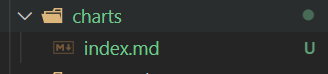
source\charts\index.md 文件中添加以下内容

1
2
3
4
5
6
<!-- 文章发布时间统计图 -->
<div id="posts-chart" data-start="2021-01" style="border-radius: 8px; height: 300px; padding: 10px;"></div>
<!-- 文章标签统计图 -->
<div id="tags-chart" data-length="10" style="border-radius: 8px; height: 300px; padding: 10px;"></div>
<!-- 文章分类统计图 -->
<div id="categories-chart" data-parent="true" style="border-radius: 8px; height: 300px; padding: 10px;"></div>
  • posts-chartdata-start="2021-01" 属性表示文章发布时间统计图仅显示 2021-01 及以后的文章数据。
  • tags-chartdata-length="10" 属性表示仅显示排名前 10 的标签。
  • categories-chartdata-parent="true" 属性表示 有子分类 时以旭日图显示分类,其他 无子分类设置为false不设置该属性设置为其他非true属性 情况都以饼状图显示分类。

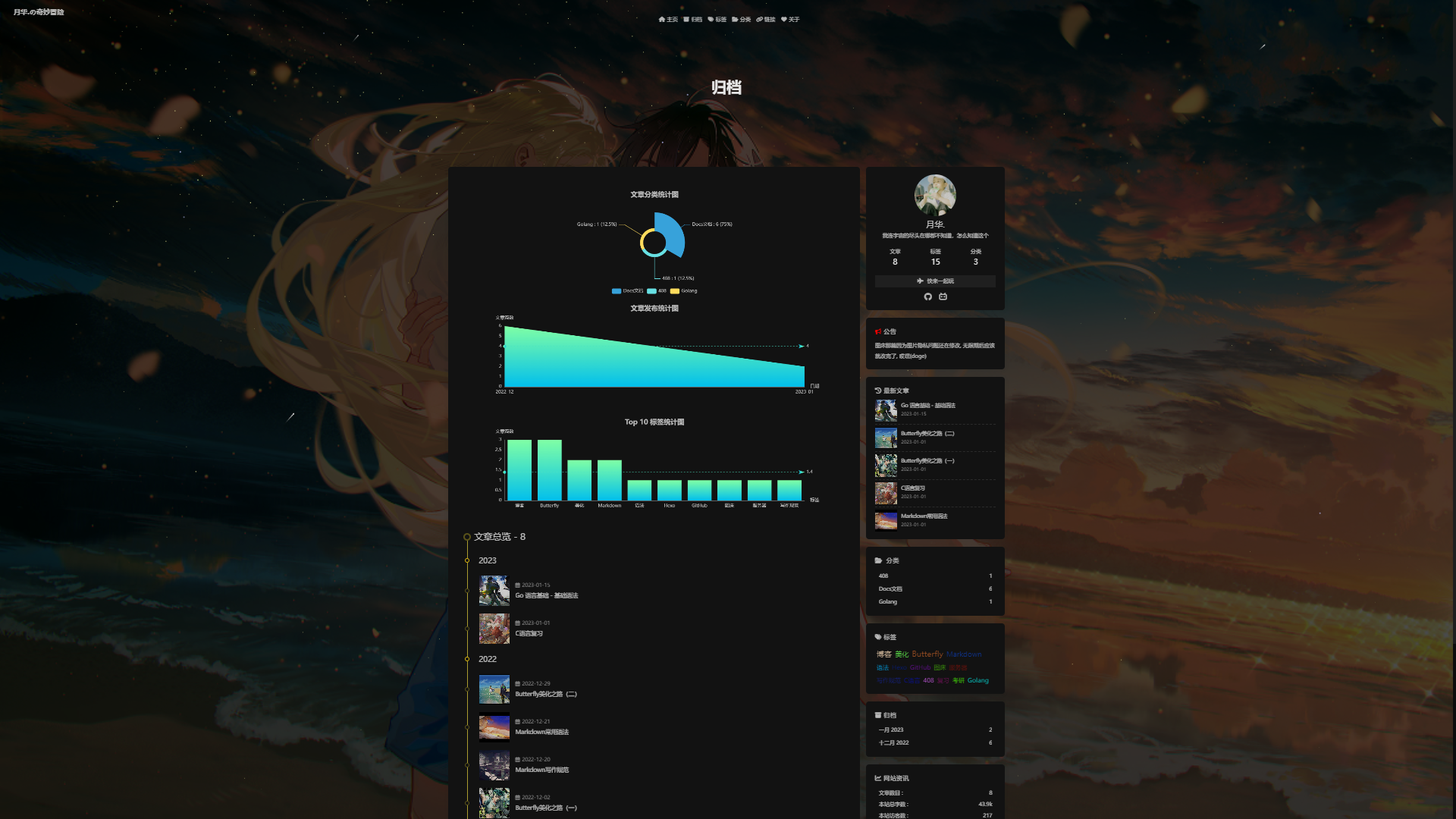
在归档页使用统计图

hexo-theme-butterfly\layout\archive.pug 中修改代码, 直接复制过去就行

代码中的先后顺序会影响统计图在博客中的显示顺序

1
2
3
4
5
6
7
8
9
10
11
12
13
14
15
16
17
extends includes/layout.pug

block content
include ./includes/mixins/article-sort.pug
#archive
//- 在归档页使用文章分类统计图
<div id="categories-chart" data-parent="false" style="height: 300px; padding: 10px;"></div>
//- 在归档页使用发布时间统计图
<div id="posts-chart" data-start="2022-12" style="height: 300px; padding: 10px;"></div>
//- 在归档页使用标签统计图
<div id="tags-chart" data-length="10" style="height: 300px; padding: 10px;"></div>
- const archiveLength = findArchiveLength(fragment_cache)
.article-sort-title= _p('page.articles') + ' - ' + archiveLength
+articleSort(page.posts)
include includes/pagination.pug


归档页

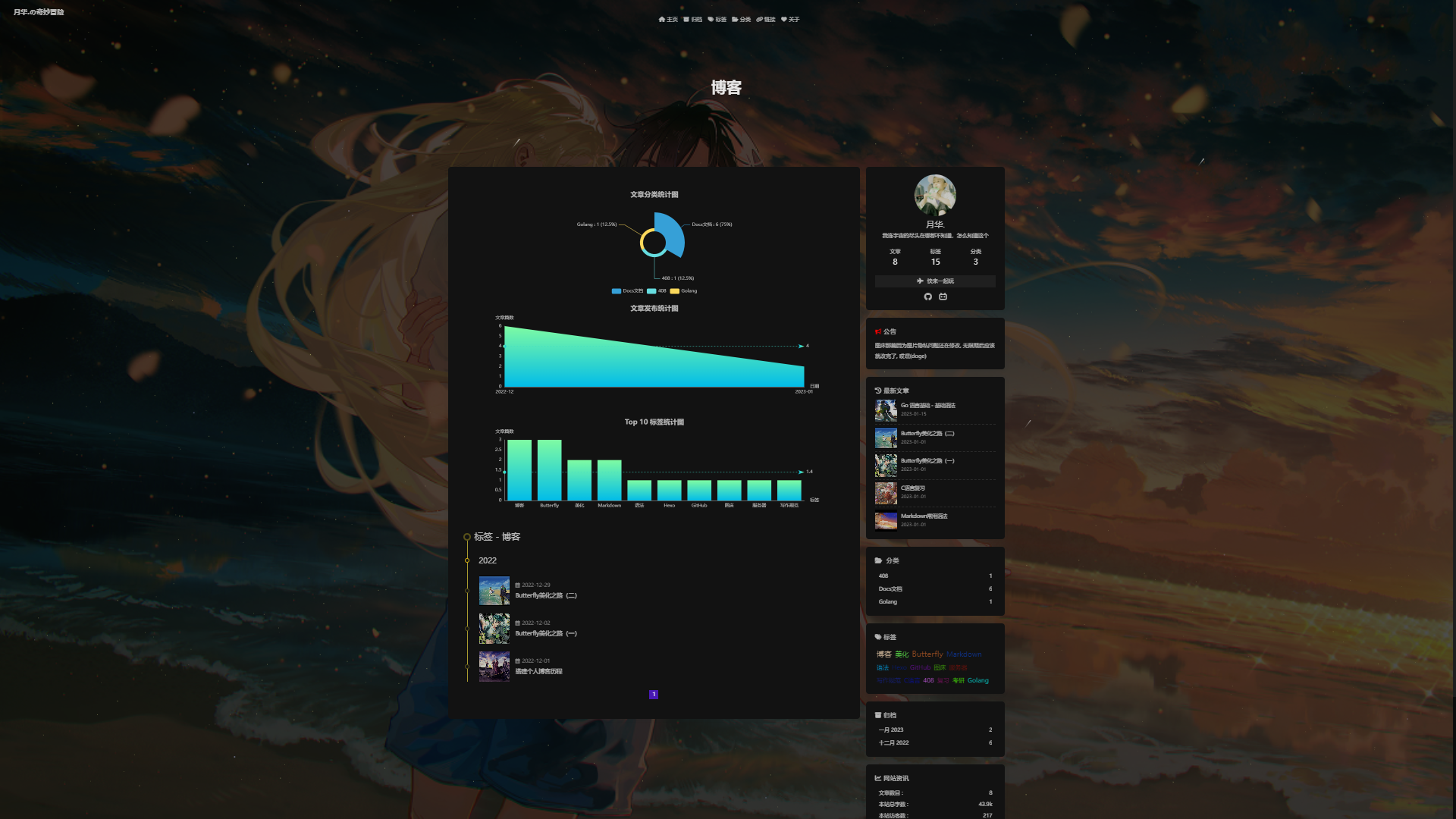
在标签页使用统计图

这个标签页不是指 tag 文件夹下的 index.md文件, 而是博客中点进去一个标签进去的页面

hexo-theme-butterfly\layout\tag.pug 中修改代码, 直接复制过去就行

代码中的先后顺序会影响统计图在博客中的显示顺序

1
2
3
4
5
6
7
8
9
10
11
12
13
14
15
16
17
18
19
20
extends includes/layout.pug

block content
if theme.tag_ui == 'index'
include ./includes/mixins/post-ui.pug
#recent-posts.recent-posts
+postUI
include includes/pagination.pug
else
include ./includes/mixins/article-sort.pug
#tag
//- 在标签页使用文章分类统计图
<div id="categories-chart" data-parent="false" style="height: 300px; padding: 10px;"></div>
//- 在标签页使用发布时间统计图
<div id="posts-chart" data-start="2022-12" style="height: 300px; padding: 10px;"></div>
//- 在标签页使用标签统计图
<div id="tags-chart" data-length="10" style="height: 300px; padding: 10px;"></div>
.article-sort-title= _p('page.tag') + ' - ' + page.tag
+articleSort(page.posts)
include includes/pagination.pug

标签页

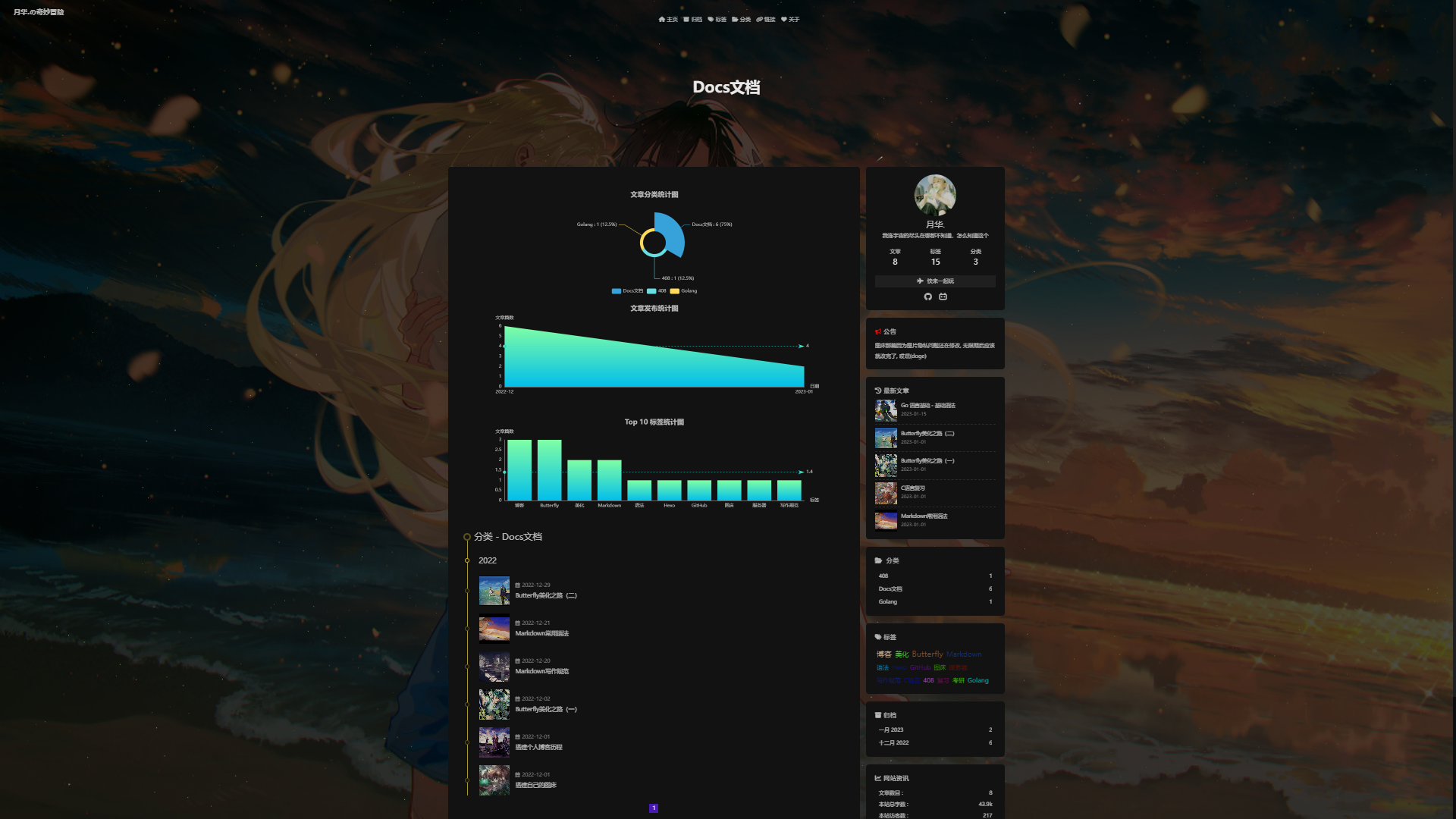
在分类页使用统计图

这个分类页不是指 category 文件夹下的 index.md文件, 而是博客中点进去一个分类进去的页面

hexo-theme-butterfly\layout\category.pug 中修改代码, 直接复制过去就行

代码中的先后顺序会影响统计图在博客中的显示顺序

1
2
3
4
5
6
7
8
9
10
11
12
13
14
15
16
17
18
19
20
extends includes/layout.pug

block content
if theme.category_ui == 'index'
include ./includes/mixins/post-ui.pug
#recent-posts.recent-posts.category_ui
+postUI
include includes/pagination.pug
else
include ./includes/mixins/article-sort.pug
#category
//- 在分类页使用文章分类统计图
<div id="categories-chart" data-parent="false" style="height: 300px; padding: 10px;"></div>
//- 在分类页使用发布时间统计图
<div id="posts-chart" data-start="2022-12" style="height: 300px; padding: 10px;"></div>
//- 在分类页使用标签统计图
<div id="tags-chart" data-length="10" style="height: 300px; padding: 10px;"></div>
.article-sort-title= _p('page.category') + ' - ' + page.category
+articleSort(page.posts)
include includes/pagination.pug

分类页


12.6 适配明暗模式

charts.js 中加入以下代码

1
2
3
4
5
6
7
8
9
10
11
12
13
14
15
16
17
18
19
20
21
22
23
24
25
26
27
28
29
30
31
32
33
34
35
36
37
38
39
40
41
42
43
44
45
46
47
48
49
function switchPostChart () {
// 这里为了统一颜色选取的是“明暗模式”下的两种字体颜色,也可以自己定义
let color = document.documentElement.getAttribute('data-theme') === 'light' ? '#4C4948' : 'rgba(251, 255, 0)'
if (document.getElementById('posts-chart') && postsOption) {
try {
let postsOptionNew = postsOption
postsOptionNew.title.textStyle.color = color
postsOptionNew.xAxis.nameTextStyle.color = color
postsOptionNew.yAxis.nameTextStyle.color = color
postsOptionNew.xAxis.axisLabel.color = color
postsOptionNew.yAxis.axisLabel.color = color
postsOptionNew.xAxis.axisLine.lineStyle.color = color
postsOptionNew.yAxis.axisLine.lineStyle.color = color
postsOptionNew.series[0].markLine.data[0].label.color = color
postsChart.setOption(postsOptionNew)
} catch (error) {
console.log(error)
}
}
if (document.getElementById('tags-chart') && tagsOption) {
try {
let tagsOptionNew = tagsOption
tagsOptionNew.title.textStyle.color = color
tagsOptionNew.xAxis.nameTextStyle.color = color
tagsOptionNew.yAxis.nameTextStyle.color = color
tagsOptionNew.xAxis.axisLabel.color = color
tagsOptionNew.yAxis.axisLabel.color = color
tagsOptionNew.xAxis.axisLine.lineStyle.color = color
tagsOptionNew.yAxis.axisLine.lineStyle.color = color
tagsOptionNew.series[0].markLine.data[0].label.color = color
tagsChart.setOption(tagsOptionNew)
} catch (error) {
console.log(error)
}
}
if (document.getElementById('categories-chart') && categoriesOption) {
try {
let categoriesOptionNew = categoriesOption
categoriesOptionNew.title.textStyle.color = color
categoriesOptionNew.legend.textStyle.color = color
if (!categoryParentFlag) { categoriesOptionNew.series[0].label.color = color }
categoriesChart.setOption(categoriesOptionNew)
} catch (error) {
console.log(error)
}
}
}
document.getElementById("mode-button").addEventListener("click", function () { setTimeout(switchPostChart, 100) })


12.7 Hexo 三连

1
hexo c;hexo g;hexo d

十三、直达底部按钮

hexo-theme-butterfly\layout\includes\rightside.pug 下进行修改

下面的是新增

1
2
3
4
5
button#go-up(type="button" title=_p("rightside.back_to_top"))
i.fas.fa-arrow-up

button#go-down(type="button" title="直达底部" onclick="btf.scrollToDest(document.body.scrollHeight, 500)")
i.fas.fa-arrow-down

直达底部


十四、网站恶搞标题

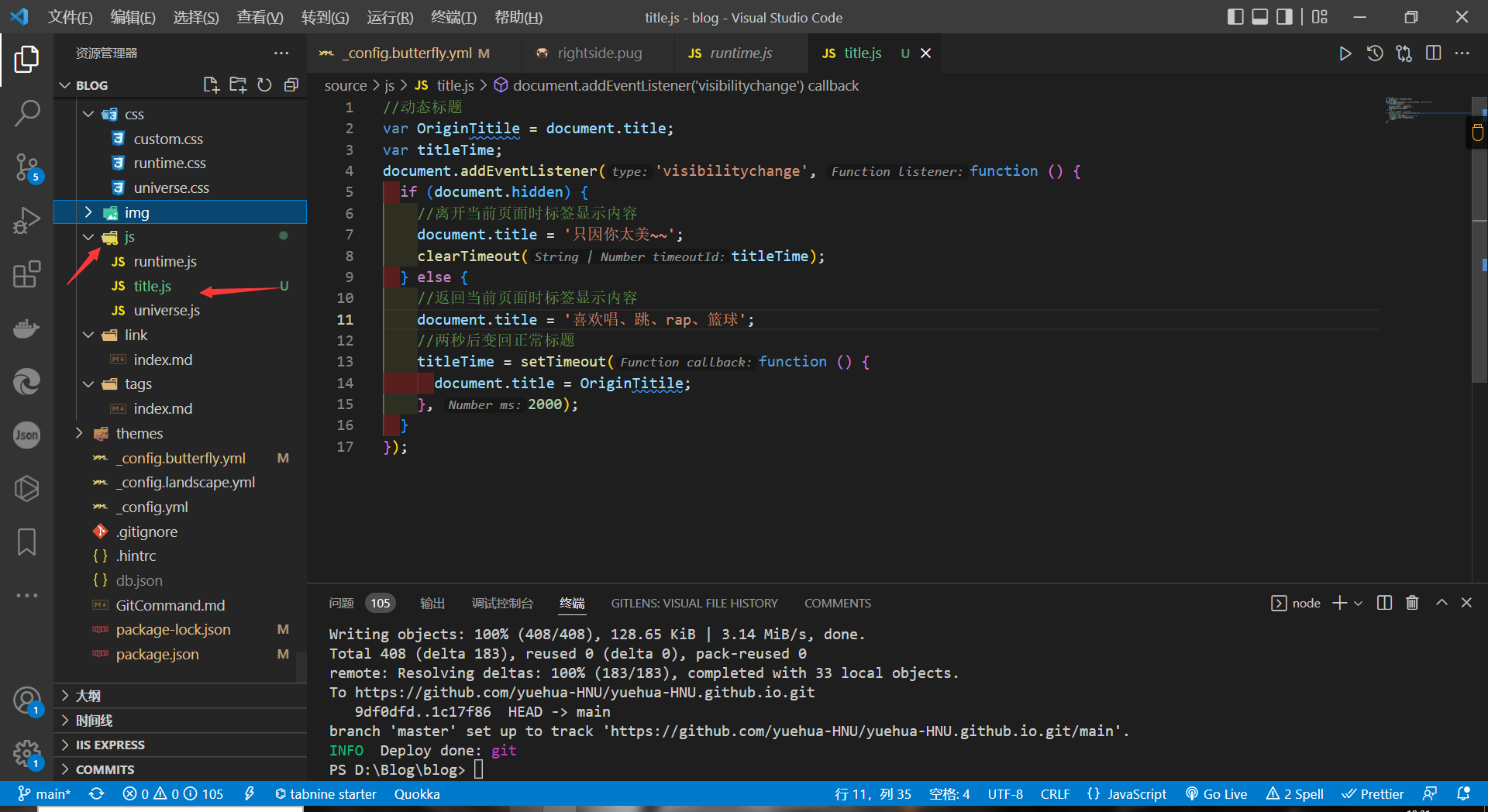
source\js 下新建 title.js 文件, 写入以下内容

1
2
3
4
5
6
7
8
9
10
11
12
13
14
15
16
17
//动态标题
var OriginTitile = document.title;
var titleTime;
document.addEventListener('visibilitychange', function () {
if (document.hidden) {
//离开当前页面时标签显示内容
document.title = '只因你太美~~';
clearTimeout(titleTime);
} else {
//返回当前页面时标签显示内容
document.title = '喜欢唱、跳、rap、篮球';
//两秒后变回正常标题
titleTime = setTimeout(function () {
document.title = OriginTitile;
}, 2000);
}
});

添加文件

主题配置文件中引入

1
2
3
4
5
6
7
inject:
head:
- <link rel="stylesheet" href="/css/universe.css">
- <link rel="stylesheet" href="/css/custom.css" media="defer" onload="this.media='all'">
- <script src="https://npm.elemecdn.com/echarts@4.9.0/dist/echarts.min.js"></script>
- <script async src="/js/title.js"></script>
# - <link rel="stylesheet" href="/xxx.css">

引入